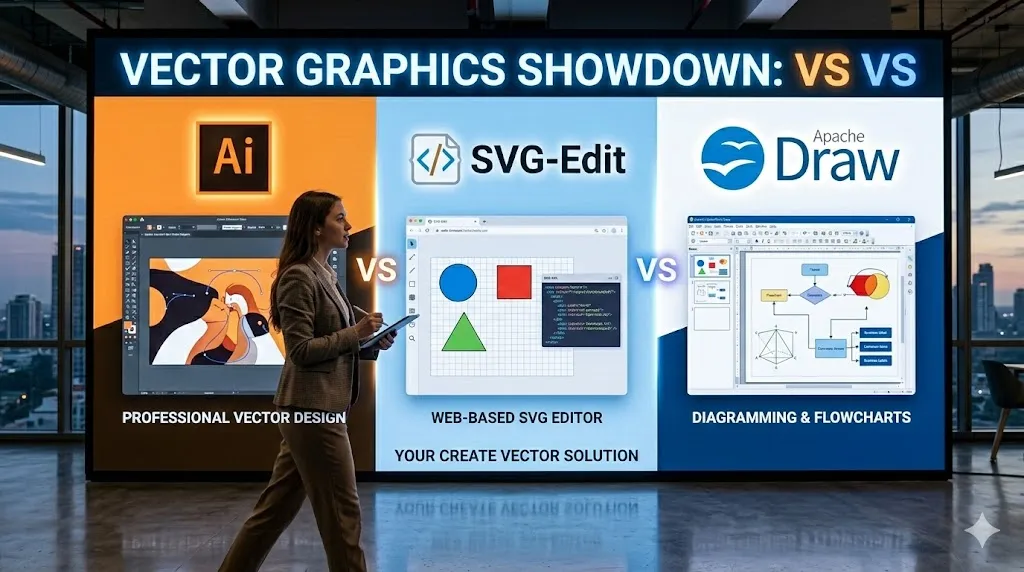
Creating vector graphics, whether for logos, icons, illustrations, or scalable designs, does not have to come with a hefty monthly fee. Many talented designers and hobbyists have moved away from subscription models and found excellent results with completely free tools. These platforms handle the essentials-precise paths, shapes, bezier curves, text handling, and export options-while staying accessible across different devices and skill levels.
The landscape in 2026 includes robust open-source options that pack advanced functionality, browser-based editors that require zero installation, and even some that have shifted to free models after years of paid access. The best ones stand out for their community support, regular updates, and ability to produce professional-quality work without limitations on commercial use. From deep customization for complex projects to quick edits for simple tasks, these tools cover a wide range of needs and prove that high-end vector design is within reach for anyone.
1. Inkscape
Inkscape serves as a free vector graphics editor that handles illustration, design work, and web graphics creation. Users get flexible drawing tools along with support for a range of file formats, plus a text tool that manages paths and effects reasonably well. Bezier curves and spiro paths give decent control for shaping objects without much hassle.
The software runs as open source with no hidden costs or upgrades required. Installation happens across common operating systems, and the community keeps it moving forward through contributions. Some find the interface takes getting used to at first, but once familiar it handles everyday vector tasks without complaints.
Key Highlights:
- Flexible drawing tools
- Broad file format compatibility
- Powerful text tool
- Bezier and spiro curves
- Completely free and open source
Who It’s Best For:
- Illustrators working on detailed artwork
- Designers needing SVG exports
- Web folks creating scalable icons
- Hobbyists avoiding subscriptions
- Anyone preferring offline desktop software
Contact Information:
- Website: inkscape.org
- Google Play: play.google.com/store/apps/details?id=tech.ula.inkscape
2. Graphite
Graphite functions as a free open source vector graphics editor with an animation engine built in, currently sitting in alpha. The setup leans heavily on nondestructive editing through a mix of layers and node-based procedural generation, which lets changes stack without destroying originals. Right now it focuses mostly on vector work in a lightweight web app that works offline after loading.
Development pushes toward turning it into a broader 2D toolbox covering raster editing and more down the line. Native versions for desktop platforms sit in release candidate testing phases, so the web experience remains the main way to use it for now. The procedural angle feels fresh compared to traditional editors, though it demands a different mindset that clicks better once tried.
Key Highlights:
- Nondestructive editing workflow
- Node-based generative design
- Procedural vector tools
- Forever free and open source
- Lightweight offline web app
Who It’s Best For:
- Experimenters into procedural graphics
- Vector artists wanting non-destructive layers
- People open to node workflows
- Those following open source projects in early stages
- Designers curious about animation integration
- Users okay with alpha software quirks
Contact Information:
- Website: graphite.art
- Email: [email protected]
- Twitter: x.com/graphiteeditor
3. Penpot
Penpot operates as a web-based open source design platform aimed at connecting designer and developer workflows. Designs come out natively in formats like CSS, SVG, and HTML, so handoffs shrink quite a bit. Features cover flexible layouts, prototyping with interactions and transitions, plus code inspection panels showing specs and markup directly.
Collaboration happens in real time with sharing options that keep everyone looped in without extra steps. Self-hosting remains possible for those who want control, and an open API along with plugins allow custom connections. The whole thing stays free with no paid walls, which suits teams tired of locked-in ecosystems.
Key Highlights:
- Web-based open source platform
- Native CSS SVG HTML output
- Prototyping with interactive flows
- Code inspect and specs
- Self-host option available
Who It’s Best For:
- Design and dev teams needing smooth handoff
- Interface designers building systems
- Prototypers creating clickable flows
- Groups valuing open standards
- Anyone self-hosting design tools
- Contributors in open source communities
Contact Information:
- Website: penpot.app
- LinkedIn: www.linkedin.com/company/penpot
- Twitter: x.com/penpotapp
- Instagram: www.instagram.com/penpot.app
4. Vectr
Vectr works as a cloud-based vector graphics editor with AI features thrown in for logo making and image conversions. Core tools handle SVG editing, turning raster images like JPG or PNG into scalable vectors, and basic design adjustments. Real-time collaboration lets multiple people edit the same file at once, with changes syncing across devices through the browser.
AI bits include background removal, logo generation from prompts, and various converters that speed up repetitive jobs. Some advanced generators sit behind premium access or credits, but the main vector workspace stays open without forcing payments. The interface keeps things straightforward, though the heavy AI slant shifts focus away from pure manual precision sometimes.
Key Highlights:
- Cloud-based SVG editor
- AI image to vector conversion
- Real-time collaboration
- Cross-device sync
- Logo maker tools
Who It’s Best For:
- Beginners dipping into vector work
- Quick logo or icon creators
- Teams collaborating online
- Users converting photos to vectors
- Anyone wanting browser-only access
Contact Information:
- Website: vectr.com
- Email: [email protected]
- Facebook: www.facebook.com/groups/vectr
- Twitter: x.com/vectrlabs
- Instagram: www.instagram.com/vectrlabs
5. SVG-Edit

SVG-Edit runs as a browser-based SVG editor that needs no installation and works purely online. Basic drawing tools handle shapes, paths, text, and simple manipulations like grouping or aligning elements. File support sticks to SVG format for import and export, with options to open, save, or edit directly in the browser. The interface keeps things straightforward without extra layers or advanced effects that might complicate quick sessions.
Some folks find it handy for minor tweaks or when desktop software feels like too much hassle. The open source nature means it stays lightweight and free forever. It lacks deeper features compared to full desktop apps, which can feel limiting for anything beyond basic vector work.
Key Highlights:
- Browser-based with no installation
- Basic shape and path tools
- SVG import and export
- Simple grouping and alignment
- Open source code available
Who It’s Best For:
- Quick online SVG fixes
- Beginners testing vector basics
- Users without software installs
- People needing portable editing
- Anyone avoiding downloads
Contact Information:
- Website: svgedit.netlify.app
6. Method Draw

Method Draw keeps vector editing minimal and focused inside the browser. Tools cover standard shapes like rectangles, circles, lines, paths, plus text placement and image insertion. Path editing allows node additions, deletions, segment changes, and open/close operations. Grouping, ungrouping, alignment, and stroke adjustments round out the basics without overwhelming the screen.
The stripped-down approach makes it feel snappier for simple tasks, though missing layers or advanced styling turns off users who need more control. Open source roots keep it free and tweakable if someone wants to fork it. It suits casual use where complexity would just get in the way.
Key Highlights:
- Minimalist online interface
- Shape and path drawing tools
- Text on path support
- Grouping and alignment options
- SVG export capability
Who It’s Best For:
- Fast simple vector sketches
- Learning SVG fundamentals
- Browser-only workflows
- Avoiding feature bloat
- Quick edits on any device
- Hobbyists keeping things light
Contact Information:
- Website: editor.method.ac
7. LibreOffice Draw
LibreOffice Draw handles vector graphics as part of the free office suite, with a focus on diagrams, flowcharts, and technical illustrations. Tools let users manipulate objects, group them, crop images, and apply 3D effects to shapes. Connectors snap smartly for building organization charts or network diagrams, and dimension lines calculate measurements automatically.
Page size goes quite large for detailed plans or posters. Image conversion works across various formats, which helps mix raster and vector elements. The diagram-heavy slant makes it less ideal for pure artistic illustration, but it shines when charts or schematics need clean vector output.
Key Highlights:
- Diagram and flowchart tools
- Smart connectors
- Object grouping and manipulation
- Dimension lines
- Image format conversions
Who It’s Best For:
- Creating flowcharts and org charts
- Technical drawings or plans
- Users already in LibreOffice
- Mixing diagrams with documents
- Budget-conscious diagram makers
Contact Information:
- Website: www.libreoffice.org
- Phone: +49 30 55579920
- Email: [email protected]
- Address: Winterfeldtstraße 52, 10781 Berlin, Germany
- Facebook: www.facebook.com/libreoffice.org
- Twitter: x.com/libreoffice
8. Apache OpenOffice Draw
Apache OpenOffice Draw handles vector drawing alongside diagrams and business graphics inside the free office suite. Tools let users create sketches that grow into detailed plans, with smart connectors for flowcharts, organization charts, and network diagrams. Objects rotate in two or three dimensions, while a 3D controller builds basic shapes like spheres or cubes quickly. Dimension lines show measurements as lines get drawn, and glue points keep connectors attached properly even after moving things around.
The page size stretches quite far for posters or large technical layouts. Import works with common raster formats, and export includes OpenDocument plus Flash versions for older web needs. Some find the 3D rendering a bit dated in look, but it gets the job done for straightforward illustrative work without extra software.
Key Highlights:
- Smart connectors for diagrams
- 3D shape creation
- Dimension lines
- Object grouping and manipulation
- Large page support
- Flash export option
Who It’s Best For:
- Diagram and flowchart creators
- Office suite users wanting built-in vectors
- Technical poster makers
- People mixing text documents with graphics
- Anyone sticking to open standards
Contact Information:
- Website: www.openoffice.org
- Email: [email protected]
- Facebook: www.facebook.com/ApacheOO
- Twitter: x.com/ApacheOO
9. GodSVG
GodSVG acts as a structured SVG editor that shows and edits the actual code in real time alongside the visual canvas. Changes made through the interface update the code instantly, and editing the code directly reflects back in the drawing without added junk. Files stay clean, small, and optimized since no extra metadata gets thrown in during the process.
The low-abstraction approach keeps things precise for users who care about the underlying markup. It avoids ads, tracking, or forced anything, which feels refreshing in a sea of bloated tools. Some might call the direct code focus a bit nerdy, but it clicks nicely once the workflow settles in.
Key Highlights:
- Real-time code editing
- No metadata added
- Clean optimized SVG output
- Interactive element modification
- Completely free and open source
Who It’s Best For:
- SVG code tinkerers
- Users wanting precise control
- People avoiding bloat in files
- Developers editing markup visually
- Anyone who likes seeing what’s under the hood
Contact Information:
- Website: www.godsvg.com
- Twitter: x.com/MewPurPur
10. Krita
Krita focuses mainly on digital painting but includes vector layers and tools that handle some illustration needs. Brush engine offers variety for different styles, with stabilizers and assistants helping steady lines or follow guides. Layers stack normally, animation basics exist for frame-by-frame work, and the interface docks rearrange to fit personal setups with saved workspaces.
Community resources bring in extra brushes, patterns, and plugins through online sharing. No subscriptions or limits block usage, which suits long sessions without interruptions. The vector side stays secondary to raster painting, so pure vector purists sometimes feel it falls short compared to dedicated editors.
Key Highlights:
- Versatile brush engine
- Vector layers support
- Customizable dockers and workspace
- Animation tools
- Stabilizers and drawing assistants
Who It’s Best For:
- Digital painters needing occasional vectors
- Artists mixing raster and vector
- People building custom workflows
- Animation sketchers
- Community-focused users
Contact Information:
- Website: krita.org
- Instagram: www.instagram.com/krita_foundation
11. Vector Ink
Vector Ink runs as a cloud-based SVG editor with AI assistance for generating and editing vectors. Tools cover shape editing, smart snapping, measuring guides, and access to a large icon library directly in the workspace. AI features let users type descriptions to create logos, icons, or other assets that come out editable. Image vectorization and upscaling sit alongside for turning raster into clean vectors.
The whole setup works across devices through the browser with no heavy downloads. It leans toward creative production like branding or UI elements, though the cloud reliance means internet stays required. The AI generation sometimes needs heavy tweaking, but it gives a decent starting point when stuck.
Key Highlights:
- Cloud SVG editor
- AI vector generation
- Image to vector tool
- Icon library access
- Precision editing guides
Who It’s Best For:
- Logo and branding starters
- UI icon designers
- People using AI for vector ideas
- Cross-device cloud workers
- Creators needing quick asset generation
Contact Information:
- Website: vectorink.io
- Facebook: www.facebook.com/vectorinkstudio
- Twitter: x.com/vectorinkstudio
- Instagram: www.instagram.com/vectorinkstudio
12. Pencil2D Animation
Pencil2D Animation serves as a lightweight tool built specifically for hand-drawn 2D animation. The interface stays minimal so the focus remains on drawing frames rather than hunting through menus. It supports switching between raster for sketching and painting and vector for clean inking lines without breaking the workflow.
Cross-platform support covers the usual desktop systems, and everything stays open source with no commercial restrictions. Updates come irregularly these days, but the core stays simple enough for quick traditional animation tests. Some find the lack of fancy effects refreshing when the goal is just flipping through rough drawings.
Key Highlights:
- Minimal interface for animation
- Raster and vector layers
- Cross-platform desktop app
- Open source and free for commercial use
- Frame-by-frame hand-drawn focus
Who It’s Best For:
- Traditional 2D animators starting out
- Sketchers testing animation ideas
- Users wanting lightweight offline software
- People avoiding complex timelines
- Hobbyists flipping through frames
Contact Information:
- Website: www.pencil2d.org
- Email: [email protected]
- Facebook: www.facebook.com/groups/709024775972087
- Twitter: x.com/pencil2d
13. YouiDraw
YouiDraw provides several online drawing tools centered around vector graphics in the browser. The main drawing section handles basic vector creation with support for various environments and styles. A separate logo creator offers templates for headings, icons, buttons, and other web elements that export as vectors. The painter tool shifts toward raster with customizable brushes and paper textures for a more traditional feel.
Everything runs through the web without downloads, and access happens via Chrome extension or directly in the browser. The split into different tools makes it feel a bit scattered, but each piece stays straightforward for its purpose. Vector work leans practical for quick web assets rather than deep illustration.
Key Highlights:
- Online vector drawing
- Logo creator with templates
- Raster painter with brushes
- Browser-based access
- Chrome Web Store availability
Who It’s Best For:
- Quick web icon or button makers
- Logo sketchers using templates
- Browser-only vector users
- People mixing simple painting and vectors
- Casual designers avoiding installs
Contact Information:
- Website: site.youidraw.com
- Email: [email protected]
- Facebook: www.facebook.com/YouiDraw
- Twitter: x.com/youidraw
Conclusion
Wrapping this up, the world of vector design has plenty of solid options that don’t lock you into monthly payments or force you to learn some convoluted new system every time Adobe tweaks their pricing. Whether someone needs pixel-perfect precision for icons, clean scalable artwork for print, or just a quick way to mess around with shapes without feeling guilty about the subscription tab, there’s usually a free tool that can get the job done-sometimes even better for specific workflows.
The real takeaway is that sticking with free alternatives doesn’t mean settling for “good enough.” A lot of these tools have matured quietly in the background, picking up features that matter while skipping the corporate bloat. Sure, the interface might feel a little different at first, or you’ll miss one or two niche tricks you’re used to, but after a week or two most people adapt and rarely look back. In the end, the choice comes down to what actually fits the way you work, not what a glossy landing page says you should want. Pick one that clicks, spend less time worrying about licenses, and more time actually creating. That’s usually the win.