
Windows 11 automatically updates most drivers through Windows Update, but you can manually update specific drivers using Device Manager, manufacturer websites, or NVIDIA/Intel’s official driver pages. For best results, enable automatic updates in Windows Settings and periodically check Device Manager for devices with outdated drivers.
Why Driver Updates Matter for Windows 11
Drivers are software that allows Windows 11 to communicate with hardware devices. Without updated drivers, connected devices won’t work properly. Think of them as translators between your operating system and peripherals like mice, keyboards, printers, and video adapters.
Fresh drivers ensure optimal performance, fix compatibility issues, and patch security vulnerabilities. But here’s the thing—most people don’t need to manually hunt for updates. Windows 11 handles this automatically through Windows Update.
The Automatic Approach: Windows Update
According to Microsoft’s official support documentation, the best way to get driver updates is automatically using Windows Update. The system downloads and installs recommended drivers for most hardware without any user intervention required.
Windows Update covers:
- Network adapters
- Printers and scanners
- Video adapters (graphics cards)
- Bluetooth devices
- USB peripherals
- Audio devices
These automatic updates are typically the latest and most current versions available. The best part? They happen in the background while you work.

Manual Updates via Device Manager
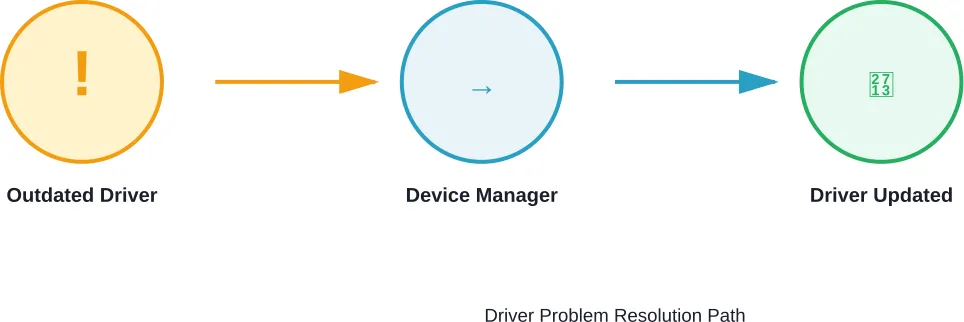
Sometimes you need to update a specific driver immediately. Device Manager is your tool for this. Open it by right-clicking the Start button and selecting “Device Manager” (or search for it directly).
Here’s the process:
- Locate the device with outdated drivers
- Right-click the device name
- Select “Update driver”
- Choose “Search automatically for updated driver software”
- Let Windows search online and install the latest version
- Restart if prompted
If Windows can’t find a newer driver automatically, you’ll have the option to browse your computer or visit the manufacturer’s website.
Graphics Driver Updates (NVIDIA, Intel, AMD)
Graphics drivers often need attention. NVIDIA and Intel provide dedicated driver download pages on their official websites. These pages let you select your specific GPU model and operating system to get the exact driver you need.
For best gaming performance and stability, check these manufacturer pages periodically. The drivers available there may be newer than what Windows Update offers initially.
| Method | Best For | Effort Level |
|---|---|---|
| Windows Update | General hardware | Automatic |
| Device Manager | Specific devices | Low |
| Manufacturer Website | GPU, chipset drivers | Medium |
Bluetooth Driver Updates
Bluetooth connection issues often stem from outdated drivers. According to Microsoft’s support resources, updating the Bluetooth driver can resolve pairing, connection, and discovery problems.
To update a Bluetooth driver: expand the Bluetooth category in Device Manager, right-click your adapter, select “Update driver,” and let Windows search automatically. Restart your computer after installation completes.
When Device Manager Shows a Yellow Exclamation Mark
A yellow exclamation mark means the device driver is missing or outdated. This is exactly when Device Manager manual updates become essential. The device won’t function properly until you install the correct driver.
Right-click the flagged device and update it immediately. If Windows can’t find it online, visit the device manufacturer’s website directly to download and install the driver manually.
Frequently Asked Questions
Generally speaking, yes. Even if devices function normally, updated drivers provide security patches, performance improvements, and better hardware compatibility. Aim to check for updates monthly or when experiencing issues.
Windows Update handles this automatically in the background. For GPU drivers from NVIDIA or Intel, checking quarterly is reasonable unless you game frequently—then monthly checks make sense.
Rarely, but it happens. If an update breaks functionality, Device Manager allows you to roll back to the previous driver version through the driver properties menu.
Visit the official manufacturer website for your hardware. NVIDIA, Intel, AMD, and peripheral manufacturers all host download pages. Never use third-party driver download sites—they can bundle malware.
Absolutely. Device Manager is a built-in Windows tool that searches Microsoft’s official driver database. It’s the safest method besides visiting manufacturer websites directly.
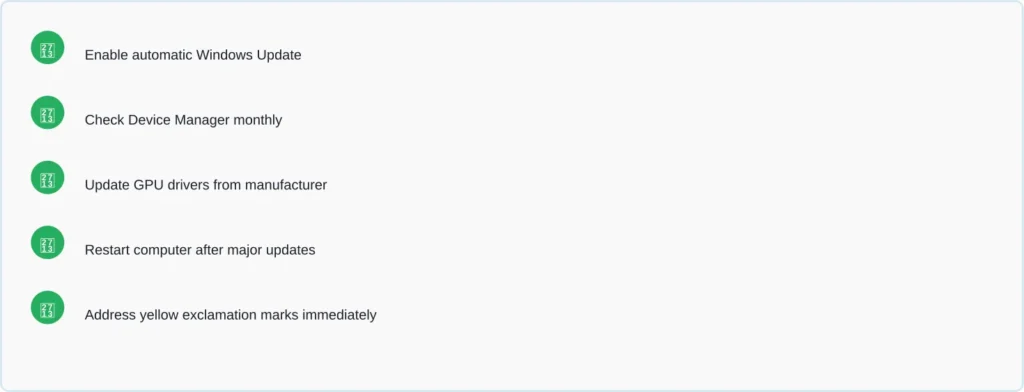
Quick Checklist for Driver Maintenance
Final Thoughts
Keeping drivers updated is one of the simplest maintenance tasks that yields real benefits. Windows 11 does most of the heavy lifting automatically through Windows Update, so there’s no excuse to neglect it.
For specialized hardware like graphics cards, bookmark the manufacturer download pages and check them periodically. When Device Manager flags a device with a warning, address it quickly. Most driver-related issues resolve with a simple update and restart.