
Quick Summary: Yes, it’s possible to unsend an email, but only within a limited time window. Gmail offers up to 30 seconds, Outlook requires both sender and recipient to be on the same Microsoft 365 organization, and Apple Mail provides up to 30 seconds on iOS 16 and later. Once the time window expires or the recipient opens the message, recall becomes impossible.
Everyone’s hit “Send” too soon. The attachment was missing. The wrong name auto-filled. Or the tone came across harsher than intended.
The panic sets in immediately. Can this be fixed? The short answer is yes—sometimes. But it depends on which email platform is being used, how quickly action is taken, and whether specific technical conditions are met.
Email recall isn’t as straightforward as hitting “undo” on a document. Once a message leaves the outbox, it travels through mail servers and protocols that weren’t originally designed with a recall function in mind. Different email providers have developed workarounds, but each comes with strict limitations.
How Email Unsend Actually Works
The term “unsend” is somewhat misleading. In most cases, the email has already been sent—the platform just delays its delivery to give senders a brief window to cancel the action.
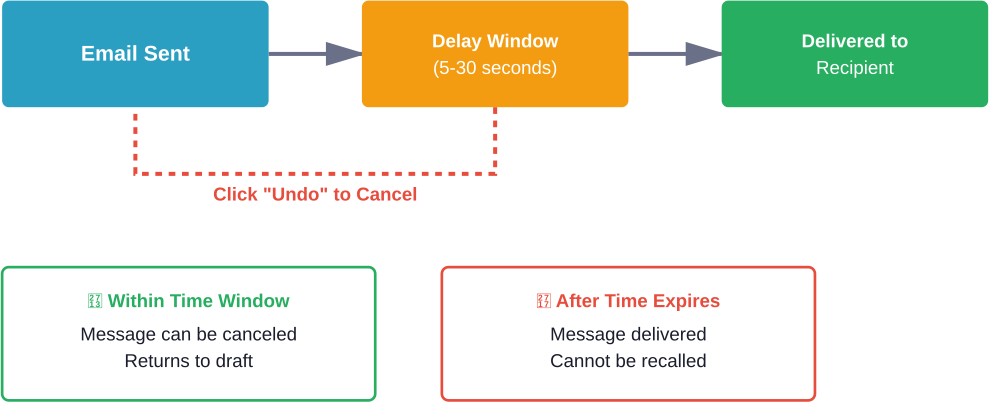
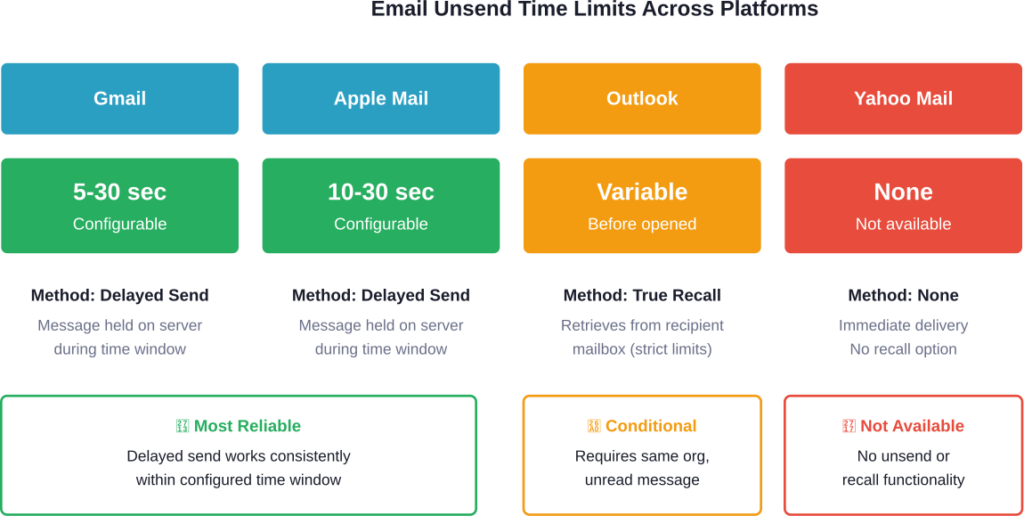
Here’s the thing though—what looks like “unsending” is typically a delayed send mechanism. When someone hits “Send” in Gmail, for instance, the message doesn’t immediately leave Google’s servers. It sits in a holding pattern for the configured time window (5 to 30 seconds), during which the sender can cancel transmission.
True message recall, as offered by Microsoft Outlook, works differently. It attempts to retrieve a message from the recipient’s mailbox after it’s been delivered. But this only works under very specific conditions.
Gmail: Undo Send Feature
Gmail provides an “Undo Send” option that gives senders a brief window to cancel message delivery. According to the official Gmail support documentation, this feature can be configured in settings.
How to Enable and Use Gmail Undo Send
The feature is enabled by default, but the time window can be adjusted. Here’s how it works:
After sending a message, a notification appears at the bottom of the screen with an “Undo” button. Click it before the timer expires and the email will be canceled. The message returns to the compose window as a draft.
To adjust the cancellation window, go to Gmail Settings (gear icon), then the “General” tab. Look for “Undo Send” and select a cancellation period: 5, 10, 20, or 30 seconds. The maximum available window is 30 seconds.
Gmail Undo Send Limitations
The 30-second maximum is non-negotiable. Once that window closes, the message has been delivered and cannot be retrieved through Gmail’s interface.
Community discussions on platforms like Reddit frequently show users searching for ways to recall Gmail messages hours or even days after sending. According to official Google support documentation, this isn’t possible. Once the undo window expires, the message has left Google’s servers and entered the recipient’s mail system.
Some users ask whether deleting a sent message from their “Sent” folder will prevent delivery. It won’t. That folder is just a record—the actual message has already been transmitted.
Microsoft Outlook: Message Recall
Outlook takes a different approach. Instead of delaying delivery, it attempts to recall messages that have already been sent. But this feature comes with strict requirements.
Requirements for Outlook Recall
According to official Microsoft support documentation, message recall only works when specific conditions are met:
- Both sender and recipient must have a Microsoft 365 work or school email account
- Both must be in the same organization
- The recipient must not have opened the message yet
- The message must still be in the recipient’s inbox (not moved to another folder)
- Both must be using Outlook (the feature doesn’t work with Outlook on the web in all cases)
Personal email accounts—Gmail, Hotmail, Outlook.com—cannot use message recall. For personal accounts, Microsoft recommends using the “Undo Send” delay feature instead, which works similarly to Gmail’s approach.
How to Recall a Message in Outlook
For users who meet the requirements, here’s the process:
Open Outlook and go to the Sent Items folder. Double-click the message to open it in a separate window (this is important—recall doesn’t work from the reading pane). Select File > Info > Resend or Recall > Recall This Message.
Two options appear: “Delete unread copies of this message” or “Delete unread copies and replace with a new message.” Select the preferred option and click OK.
Outlook will attempt to retrieve the message from recipient mailboxes. Success isn’t guaranteed—if the recipient has already opened the email, moved it to a folder, or is using a non-Outlook client, recall will fail.
| Condition | Recall Success |
|---|---|
| Recipient hasn’t opened message | Possible |
| Recipient opened message | Failed |
| Message moved to folder | Failed |
| Recipient using non-Outlook client | Failed |
| Recipient outside organization | Not available |
| Personal email account | Not available |
Outlook Recall Failure Scenarios
Real talk: Outlook’s recall feature fails more often than it succeeds. The requirements are so specific that most scenarios don’t qualify.
If the recipient checks email on their phone using a different mail app, recall won’t work. If they’ve set up a rule that automatically moves messages to a folder, recall won’t work. If they’ve simply opened the email to glance at it, recall won’t work.
According to data cited in industry research, nearly a third of companies have lost a client or customer after an email mistake. According to available data, there was a significant increase in data breaches caused by misdirected emails in 2021 compared to the previous year. These statistics highlight why organizations cannot rely on recall as a safety net.
Apple Mail: Undo Send on iPhone and Mac
Apple introduced an Undo Send feature for Mail in iOS 16, iPadOS 16, and macOS Ventura. According to official Apple support documentation, this works on compatible iPhone models including iPhone 11 and later.
How to Use Undo Send in Apple Mail
After sending an email in the Mail app, a notification appears at the bottom of the screen with an “Undo Send” button. Tap it before the timer expires to cancel delivery.
The default time window is 10 seconds, but this can be adjusted. On iPhone, go to Settings > Mail > Undo Send Delay. Options include Off, 10 seconds, 20 seconds, or 30 seconds.
On Mac, open Mail, then go to Mail > Settings > Composing. Look for “Undo Send Delay” and select the preferred time window.
Apple Mail Limitations
Like Gmail, Apple’s feature is a delayed send mechanism. Once the configured time expires, the message is delivered and cannot be recalled. The maximum delay is 30 seconds.
The feature only works with Apple’s native Mail app. Third-party email clients on iOS don’t have access to this functionality.
Other Email Platforms
Yahoo Mail
Yahoo Mail does not offer an unsend or recall feature. Once a message is sent, it’s immediately delivered to the recipient’s server. There’s no delay mechanism or retrieval option.
Proton Mail
Proton Mail provides an “Undo Send” feature similar to Gmail’s approach. After clicking Send, a brief notification appears with an option to cancel. The time window is configurable in settings.
Proton Mail’s focus on privacy and encryption means that once a message leaves their servers, it’s encrypted end-to-end and cannot be recalled even by Proton’s own infrastructure.
Outlook Mobile Apps
According to official Microsoft support documentation, Outlook for Android and iOS do not support message recall or undo send. Messages sent from mobile apps are immediately delivered without a cancellation window.
Can Someone Unsend After Hours or Days?
No. Every platform that offers unsend or recall functionality enforces time limits measured in seconds, not hours or days.
The technical reason is straightforward: email protocols (SMTP, IMAP, POP3) don’t include native recall functionality. Once a message leaves the sending server and arrives at the receiving server, it’s out of the sender’s control.
Delay mechanisms work because the email hasn’t actually left the platform’s servers yet. True recall, as in Outlook, requires administrative access to the recipient’s mailbox—which only works within the same organization’s mail system.
What About Third-Party Solutions?
Some users look for browser extensions or third-party tools that promise to extend recall windows or add unsend functionality to platforms that don’t natively support it.
These tools typically work by intercepting the send command and introducing their own delay. But this creates several problems. The email still goes through the third-party’s servers, which raises privacy and security concerns. If the extension fails or the service goes offline, messages might not be delivered at all.
Organizations should be particularly cautious. Routing corporate email through unauthorized third-party services can violate data protection policies and create compliance issues.
Best Practices to Avoid Needing Unsend
The most effective strategy is prevention. Here are approaches that reduce the likelihood of sending problematic emails:
Use draft mode aggressively. Write emails in drafts and review them after a few minutes. Fresh eyes catch errors that seemed invisible during composition.
Enable confirmation prompts. Some email clients allow configuration of send confirmations for messages to external recipients or those with attachments. This adds a deliberate step before transmission.
Remove recipients until the final step. Compose the entire message before adding anyone to the To, Cc, or Bcc fields. This prevents accidental sends while editing.
Configure the maximum delay window. In Gmail and Apple Mail, set the undo send delay to the maximum 30 seconds. This provides the longest possible safety net.
Use scheduled send. Both Gmail and Outlook support scheduling messages for future delivery. Set an email to send in 5-10 minutes and review it one more time before that deadline.
Corporate Email Policies
Organizations that rely on Outlook within Microsoft 365 should not depend on message recall as a primary safety mechanism. The failure rate is too high.
Instead, many implement preventive controls: data loss prevention (DLP) policies that scan outbound messages for sensitive information, required approval workflows for external communications, and mandatory delay periods before external messages are transmitted.
Employee training is equally important. Users need to understand that recall is unreliable and that careful composition is the only true safeguard.
Technical Background: Why Email Can’t Be Truly Recalled
Email protocols date back to the early internet era. SMTP (Simple Mail Transfer Protocol), an early internet protocol, was designed for reliability and delivery—not revocation.
When a message is sent, it moves from the sender’s mail server to the recipient’s mail server. Once that transfer completes, the sending server has no authority over the message. It’s now stored in the recipient’s mail system.
Outlook’s recall works because Exchange Server provides administrative tools for mailbox management within the same organization. But this is a proprietary feature, not part of standard email protocols. It’s essentially reaching into the recipient’s mailbox and deleting the message—which only works when both mailboxes are on the same Exchange server.
Cross-platform recall is technically infeasible. A Gmail server can’t reach into an Outlook mailbox to delete a message, and vice versa. Standards bodies like the IETF have explored header protection and cryptographic controls for email security, as documented in RFC 9788, but these focus on authentication and privacy rather than message revocation.
Mobile App Differences
Unsend and recall functionality varies significantly between desktop clients and mobile apps. According to official Microsoft documentation, Outlook for Android and iOS do not support message recall. The feature simply isn’t available in the mobile interface.
Gmail’s Undo Send works on both Android and iOS apps, but the time window must be configured in the web interface first. The setting syncs across devices.
Apple Mail’s Undo Send works on iPhone and iPad running iOS 16 or later, but only within the native Mail app. Third-party email apps on iOS don’t have access to this functionality.
Frequently Asked Questions
No. All email platforms that support unsend or recall functionality enforce time limits measured in seconds. Gmail and Apple Mail provide maximum 30-second windows. Outlook’s recall only works before the recipient opens the message, typically within minutes. After an hour, the message has been fully delivered and cannot be retrieved.
No. Deleting a message from the Sent folder only removes the sender’s copy. The recipient’s copy remains in their inbox. The Sent folder is just a record—it has no connection to the delivered message.
In Outlook, yes. When recall is attempted, the recipient may receive a notification stating that the sender wants to recall the message. If recall fails, they see both the recall notification and the original message, which often draws more attention to it.
No. According to official Gmail support documentation, 30 seconds is the maximum configurable delay. This limit is hardcoded and cannot be extended through settings or third-party tools.
For Gmail and Apple Mail, the recipient’s actions don’t matter—the time window is absolute. If unsend is clicked within the configured delay, the message is canceled regardless of whether the recipient has seen it (because it hasn’t actually been delivered yet). For Outlook recall, if the recipient has opened the message, recall will fail.
Gmail and Apple Mail’s delayed send works regardless of the recipient’s platform, because the delay happens before the message leaves the sender’s servers. Outlook recall only works when sender and recipient are both on Microsoft 365 within the same organization—it cannot recall messages sent to Gmail, Yahoo, or other external platforms.
In some jurisdictions and industries, yes. Financial services firms and healthcare organizations often face regulations requiring retention of all communications. Successful recall might delete records that should be preserved. Legal holds and discovery requests may require preservation of sent emails even if recall was attempted. Organizations should consult legal counsel about email retention policies.
The Reality of Email Unsend
Email unsend exists, but it’s not a magic undo button. It’s a limited safety net with narrow time windows and specific technical requirements.
Gmail and Apple Mail offer the most reliable implementation through delayed send—simple, predictable, and effective within their 30-second windows. Outlook’s true recall feature sounds more powerful but fails so often that it’s practically unreliable.
The underlying issue is that email protocols weren’t designed for message revocation. Every unsend feature is a workaround built on top of systems that prioritize delivery above all else.
For personal email, the 30-second delay in Gmail or Apple Mail is sufficient to catch most immediate mistakes. For corporate communications, organizations need preventive controls rather than relying on recall.
The most important takeaway? Configure maximum delay windows, compose carefully, and understand that once those seconds expire, the message is permanent. There’s no getting it back.
Enable unsend features in your email client today. Whether using Gmail, Apple Mail, or Outlook, configure the maximum available delay or recall settings. It takes 30 seconds to set up and could save hours of explaining an embarrassing email mistake.