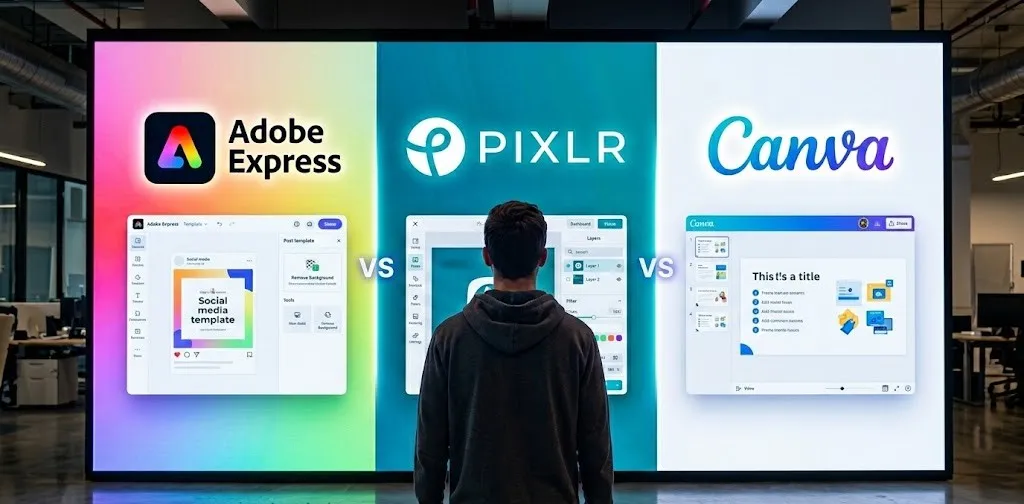
Plenty of people turn to easy-to-use design tools when they need quick visuals like social media graphics, invitations, posters, or simple presentations. The appeal usually comes down to intuitive interfaces, ready-made templates, and the ability to create something polished without spending hours learning complicated software. While one popular option has dominated this space for years, several strong alternatives have stepped up, especially with generous free tiers that deliver real value without hidden catches.
These platforms focus on making design accessible, whether for casual creators, small business owners, students, or anyone who wants professional-looking results on a budget. Many include stock photos, icons, fonts, and even basic AI-powered tweaks, all while keeping things straightforward and browser-based. The best ones stand out by offering unlimited projects or high-quality exports in their free versions, helping users avoid those frustrating upgrade prompts right when inspiration strikes.
Here are some of the top platforms providing these services, each bringing something useful to the table for different kinds of design work.
1. Adobe Express
Adobe Express serves as a straightforward browser and mobile app for putting together social posts, images, videos, flyers, and various other visuals without much hassle. The setup leans heavily on quick edits through one-click tools and some AI help for generating or tweaking content, while keeping files synced across desktop browsers and phones. Resizing designs for different platforms happens in a single file, and brand kits let users apply consistent fonts and colors easily.
Video editing stays simple with drag-and-drop options, bulk changes, and direct publishing to places like Vimeo. The free version includes basic editing alongside limited generative AI credits, a decent collection of royalty-free Adobe Stock photos/videos/music/elements, thousands of fonts, and templates for static or video work. Storage sits at a modest amount with a short version history window, and social scheduling covers just one account per network.
Key Highlights:
- One-click edits and AI assistant for refining layers
- Resize assets instantly for multiple channels
- Brand kits to lock in fonts/colors/elements
- Drag-and-drop video tools with direct export
- Cross-device sync between browser and mobile
Who It’s Best For:
- People handling basic content creation on their own
- Students putting together class or club materials
- Small setups needing brand consistency without complexity
- Anyone wanting quick social graphics or flyers
Contact Information:
- Website: www.adobe.com
- LinkedIn: www.linkedin.com/company/adobe
- Facebook: www.facebook.com/adobe
- Twitter: x.com/Adobe
- Instagram: www.instagram.com/adobe
- App Store: apps.apple.com/us/app/adobe-express-create-anything/id1051937863
- Google Play: play.google.com/store/apps/details?id=com.adobe.spark.post
2. VistaCreate

VistaCreate offers a browser-based design space where users pick from a large pool of templates to customize for social media, web, or print projects. The interface keeps things moving with easy adjustments to colors, fonts, and logos through brand style options, plus tools for adding animation effects or editing short videos. Background removal works with one click, and a sticker builder turns images into ready-to-use elements without extra software.
Free access covers a solid starting library of templates, stock photos/videos/vectors, basic elements like free fonts/music/animations, and enough storage for projects. Posting and scheduling go directly to a few major social platforms. The paid tier unlocks way more premium content, extra AI uses each month, unlimited storage, resize in one click, and team sharing features.
Key Highlights:
- Brand style tool for pulling colors/fonts from templates
- Animation effects and basic video editing
- One-click background remover and sticker constructor
- Direct publish/schedule to social networks
- Print option tied to their printing service
Who It’s Best For:
- Solo creators needing daily social or web visuals
- Small businesses keeping a consistent look across posts
- Anyone who likes mixing free stock with custom tweaks
- Users focused on quick animated content
Contact Information:
- Website: create.vista.com
- Email: [email protected]
- LinkedIn: www.linkedin.com/company/vistacreateofficial
- Facebook: www.facebook.com/vistacreateofficial
- Twitter: x.com/vistacreate
- Instagram: www.instagram.com/vistacreate
- App Store: apps.apple.com/us/app/vistacreate-graphic-design/id1402471998
- Google Play: play.google.com/store/apps/details?id=com.dephotos.crello
3. Snappa

Snappa keeps graphic creation fast by starting with preset sizes tailored to social posts, ads, blogs, or emails so nothing gets cropped wrong from the beginning. Templates give a professional jumpstart without forcing anyone to build from empty space, and a built-in stock photo library provides high-resolution options that avoid cheesy clichés. Adding text, vectors, shapes, or effects happens quickly, even for complete beginners.
Backgrounds vanish with a single click, which saves digging through layers. Resizing lets one design adapt to different formats instantly – like flipping an Instagram post into a Pinterest pin. Sharing happens straight to social sites, or users can hook up Buffer for scheduling ahead.
Key Highlights:
- Clickable presets for exact image dimensions
- Millions of free high-res stock photos
- One-click background removal
- Quick resize for multiple platforms
- Direct social sharing and Buffer scheduling
Who It’s Best For:
- Bloggers or marketers cranking out frequent posts
- Non-designers who want speed over deep control
- Small ad creators needing clean, fast graphics
- Anyone tired of starting from scratch every time
Contact Information:
- Website: snappa.com
- Facebook: www.facebook.com/SnappaHQ
- Twitter: x.com/SnappaHQ
- Instagram: www.instagram.com/snappa
4. Pixlr
Pixlr runs entirely in the browser with options for quick photo tweaks, full design layouts, or advanced editing, plus a heavy focus on AI-driven changes. Text turns into generated images, areas fill generatively, expansions add seamless content beyond original edges, and unwanted objects or backgrounds disappear with minimal effort. Face swaps, upscaling, sharpening, noise reduction, and object transforms round out the AI side for creative experimentation.
Standard tools handle filters, effects like glitch or bokeh, collage grids, batch processing, and auto product shots for cleaner e-commerce looks. The whole thing stays accessible on mobile or desktop without installs, and most core features work freely right away. Some advanced AI or extra assets sit behind paid plans, but the free entry point covers a surprising amount for casual or semi-pro use.
Key Highlights:
- Text-to-image AI generator
- Generative fill, expand, and object removal
- One-click background erase and face swap
- Auto collage grids and product shot creator
- Batch editing plus effects like glitch/reflection
Who It’s Best For:
- Photo editors wanting fast AI fixes
- Beginners dipping into design without downloads
- Small business folks creating product visuals
- Casual users who enjoy playing with generative tools
Contact Information:
- Website: pixlr.com
- Email: [email protected]
- Facebook: www.facebook.com/pixlr
- Twitter: x.com/pixlr
- Instagram: www.instagram.com/pixlr
5. Fotor
Fotor functions as an online photo editor and design tool that handles everything from basic tweaks to more involved AI-assisted changes right in the browser or on mobile. Users adjust lighting and colors, apply filters or effects, retouch portraits, or dive into generative features like turning text into images, expanding photos beyond their edges, or creating avatars from selfies. Batch editing lets multiple photos get the same treatment at once, while collage tools combine shots with adjustable layouts and spacing.
Backgrounds come off quickly with AI, unwanted objects vanish without leftover marks, and the stock library supplies plenty of high-res photos, stickers, icons, and fonts to pull in. Exports go out in common formats like JPG, PNG, or PDF, with direct social sharing built in. The free setup covers the core editing suite along with AI tools and assets, though some advanced or repeated AI uses might nudge toward paid upgrades for extra credits or space.
Key Highlights:
- AI enhancer for quick lighting and detail fixes
- Background and object removal with one action
- Text-to-image and image expansion generators
- Collage maker with custom grids and frames
- Batch processing for multiple photos
Who It’s Best For:
- Folks fixing up personal photos or selfies often
- Anyone experimenting with AI image tweaks casually
- Small creators needing quick collages or enhancements
- Mobile users who edit on the go without hassle
Contact Information:
- Website: www.fotor.com
- Email: [email protected]
- Facebook: www.facebook.com/fotorapp
- Twitter: x.com/fotor_com
- Instagram: www.instagram.com/fotor_app
- App Store: apps.apple.com/us/app/fotor-ai-photo-editor-design/id503039729
- Google Play: play.google.com/store/apps/details?id=com.everimaging.photoeffectstudio
6. Visme
Visme centers on building interactive visuals like presentations, infographics, and social graphics through a browser interface that adds elements such as animations, hotspots, or hover effects. Data turns into charts or diagrams, while branding applies fonts, colors, and logos consistently – sometimes pulling straight from a website URL. Templates cover various formats, and a content calendar helps plan and schedule posts.
Stock includes photos, icons, videos, audio, and some 3D graphics for mixing in. Real-time collaboration supports feedback and asset organization. The free plan opens up basic creation and exploration with limits on downloads or premium assets, while paid tiers unlock fuller access to templates, storage, and advanced sharing or export choices.
Key Highlights:
- Interactive elements like hotspots and animations
- Data visualization charts and diagrams
- Brand kit application from URL input
- Content calendar for social planning
- Real-time collaboration workspace
Who It’s Best For:
- People making business presentations or reports
- Creators focused on infographics with data
- Users who need branded interactive content
- Small groups handling shared visual projects
Contact Information:
- Website: www.visme.co
- LinkedIn: www.linkedin.com/company/visme
- Facebook: www.facebook.com/vismeapp
- Twitter: x.com/vismeapp
- Instagram: www.instagram.com/vismeapp
- App Store: apps.apple.com/us/app/visme-presentation-charts/id1550800427
- Google Play: play.google.com/store/apps/details?id=co.visme.mobile
7. Desygner

Desygner provides a drag-and-drop setup for crafting social posts, flyers, business cards, and similar marketing pieces with thousands of templates to start from. Resizing adapts designs across formats easily, and brand kits keep logos, colors, and fonts uniform. Stock photos, icons, and videos integrate directly, with tools for text, effects, and layout adjustments.
Background removal exists but sits behind paid access after a trial period. The free version handles basic creation, while pro unlocks unlimited premium assets like Shutterstock content, PDF handling, and extra fonts or support. A trial period lets new users test fuller features before deciding.
Key Highlights:
- Drag-and-drop with preset templates
- Easy resize for different formats
- Brand kits for consistent elements
- Built-in stock photos and icons
- PDF import/edit in paid version
Who It’s Best For:
- Small business owners doing their own marketing
- Non-designers creating flyers or social graphics
- Users who value quick template-based starts
- Anyone needing simple brand consistency
Contact Information:
- Website: www.desygner.com
- LinkedIn: www.linkedin.com/company/desygner
- Facebook: www.facebook.com/desygnerapp
- Twitter: x.com/DesygnerApp
- Instagram: www.instagram.com/desygnerapp
- App Store: apps.apple.com/us/app/desygner-design-any-graphic/id1052684637
- Google Play: play.google.com/store/apps/details?id=com.delgeo.desygner
8. Piktochart
Piktochart specializes in turning data or ideas into infographics, reports, presentations, and short videos using an AI-assisted editor that generates layouts from prompts. Charts, graphs, maps, flowcharts, and tables handle visualization needs, while templates provide starting points for customization. Brand assets apply fonts, colors, and logos across projects.
AI covers image generation/modification, background removal, upscaling, and even text-to-video clips with motion. Collaboration happens through shared workspaces with comments and revisions. The free plan grants temporary full access during an initial period with limited downloads and AI credits, after which basics remain but advanced retention or unlimited use requires upgrading.
Key Highlights:
- AI generation from text prompts for visuals
- Data charts, maps, and flowcharts
- Brand asset application across designs
- Short video creation with AI
- Shared workspace for revisions
Who It’s Best For:
- Data-heavy creators building infographics
- Report or presentation makers with structure
- Users exploring AI for quick visual drafts
- Teams needing collaborative data visuals
Contact Information:
- Website: piktochart.com
- LinkedIn: www.linkedin.com/company/piktochart
- Facebook: www.facebook.com/Piktochart
- Twitter: x.com/Piktochart
- Instagram: www.instagram.com/Piktochart
9. Stencil
Stencil keeps things straightforward for whipping up social media graphics, ads, or blog headers without much fuss. Pick a background or stock photo, slap on text with one of the included fonts, throw in some icons or graphics, and you’re done in a flash. The interface sticks to simple steps so even quick jobs don’t drag on, and preset sizes match common platforms right away.
Uploads handle multiple logo versions for switching brands easily, plus custom fonts load in to match exact styles. Sharing goes direct to social sites or through Buffer for later posting. Free access covers the basics with a huge stock photo pool, templates, icons, and extensions for browser use, though some premium templates might sit behind a paywall.
Key Highlights:
- Preset sizes for social and ad formats
- Upload and store multiple logos
- Custom font uploads
- Direct social sharing and Buffer integration
- Browser extensions for Chrome and Firefox
Who It’s Best For:
- Bloggers posting frequent headers or visuals
- Social media folks needing fast graphics
- Business owners handling their own ads
- Anyone who likes simple text-over-image workflows
Contact Information:
- Website: getstencil.com
- Email: [email protected]
- Facebook: www.facebook.com/GetStencil
- Twitter: x.com/getstencil
- Instagram: www.instagram.com/getstencil
10. PicMonkey
PicMonkey mixes photo editing with design tools for turning out social posts, ads, logos, flyers, or thumbnails. Start with stock photos or your own uploads, tweak colors and exposure, remove backgrounds, or add effects that range from subtle to pretty dramatic. Templates speed up common formats like invitations or presentations.
Brand kits store logos, fonts, and colors for consistent reuse across projects. Graphics include vectors with options for animations or shadows, and stock pulls in high-quality images or video clips. Free trial opens up the full set temporarily, after which basics stay available but premium assets or advanced edits require a paid plan.
Key Highlights:
- Background remover and touch-up tools
- Brand kit for logos/fonts/colors
- Vector graphics with animations
- Templates for social and marketing formats
- Stock photos and video integration
Who It’s Best For:
- Creators focusing on social media visuals
- Small brands building logos and business cards
- Photo editors who want design extras
- Anyone making flyers or presentation slides occasionally
Contact Information:
- Website: www.picmonkey.com
- LinkedIn: www.linkedin.com/company/picmonkey
- Facebook: www.facebook.com/PicMonkey
- Twitter: x.com/picmonkey
- Instagram: www.instagram.com/picmonkey
- App Store: apps.apple.com/us/app/picmonkey-photo-video-design/id1105556534
- Google Play: play.google.com/store/apps/details?id=com.picmonkey.picmonkey
11. Kittl

Kittl leans into AI for speeding up branding work, product visuals, or marketing pieces while still offering manual design controls. Generate images or videos from prompts, create mockups that look studio-quality, or edit vectors with text effects and reframing. Background removal and smart flows help refine ideas without starting from scratch every time.
Templates provide customizable starting points, especially for product shots or branded content. The free version lets users jump in right away with core tools and AI features. Paid access unlocks fuller use of the latest models or extra generation capacity for heavier workflows.
Key Highlights:
- AI image and video generation
- Instant product mockups
- Background remover and reframing
- Vector editing with text effects
- Customizable templates for branding
Who It’s Best For:
- Designers crafting professional brand assets
- Sellers needing quick product photography looks
- Businesses creating custom marketing imagery
- Agencies turning around ads or visuals fast
Contact Information:
- Website: www.kittl.com
- Facebook: www.facebook.com/kittldesign
- Twitter: x.com/kittldesign
- Instagram: www.instagram.com/kittldesign
12. BeFunky
BeFunky combines photo editing, collage building, and graphic design in one online spot that works across devices. Crop or resize with precision, apply artsy filters to mimic paintings or sketches, or batch-process several photos for consistent tweaks. Portrait retouching smooths things out, and the AI background remover isolates subjects cleanly for transparent or colored backdrops.
Collage wizard auto-builds layouts from uploaded shots, while design templates let users customize pre-made concepts. Stock images and vector icons pull straight in without hunting elsewhere. The whole platform stays free for core use, with mobile apps extending editing to phones.
Key Highlights:
- One-click collage wizard
- AI background remover
- Batch photo editing
- Artsy filters and portrait touch-up
- Free stock images and vector icons
Who It’s Best For:
- Casual editors turning photos into art
- Collage lovers who want quick auto-layouts
- Mobile users editing on the fly
- Beginners mixing photos with simple designs
Contact Information:
- Website: www.befunky.com
- LinkedIn: www.linkedin.com/company/befunky
- Twitter: x.com/befunky
- Facebook: www.facebook.com/befunky
- App Store: apps.apple.com/us/app/befunky/id442716817
- Google Play: play.google.com/store/apps/details?id=air.com.befunky.BeFunkyPhotoEditor
13. GIMP
GIMP acts as a downloadable image editor that runs on various operating systems and handles detailed photo work without any cost or restrictions on sharing changes to its code. Retouching photos, restoring old images, or building creative composites happens through layers, selections, and brushes that give solid control for precision tasks. Artists use it to turn basic images into original pieces, while others pull it into workflows for icons, UI mockups, or graphical elements that need clean output.
Color management keeps things accurate from screen to print, especially when paired with other free tools in a publishing setup. Scripts and plugins extend what it can do, letting users automate steps or add niche functions through different programming languages. The whole thing stays open for anyone to tweak or build on, which suits folks who want full ownership of their editing process.
Key Highlights:
- Layer-based editing with masks and selections
- Color management for consistent output
- Scriptable with multiple languages
- Plugin support for extra features
- Tools for photo retouching and restoration
Who It’s Best For:
- Photographers doing serious retouching locally
- Illustrators creating original artwork from scratch
- Designers working on UI elements or icons
- Anyone preferring offline software with deep customization
Contact Information:
- Website: www.gimp.org
14. Inkscape
Inkscape focuses on vector drawing in a free downloadable package that suits illustrators, designers, or anyone needing scalable graphics. Drawing tools stay flexible for paths, shapes, and curves, while text handling allows detailed styling and flow along paths. Files open and save in common formats without locking users into one ecosystem.
Bezier curves and spiro paths make smooth lines easier to create and adjust. The interface keeps vector work straightforward, especially for logos, icons, or illustrations that need to resize cleanly at any scale. It’s a solid pick when raster editors feel too limiting for clean, resolution-independent designs.
Key Highlights:
- Bezier and spiro curve tools
- Flexible drawing and path editing
- Powerful text manipulation
- Broad file format support
- Vector-based scalability
Who It’s Best For:
- Illustrators creating scalable artwork
- Designers working on logos or icons
- Web folks needing vector elements
- Anyone avoiding pixel-based limitations
Contact Information:
- Website: inkscape.org
- Google Play: play.google.com/store/apps/details?id=tech.ula.inkscape
15. Photopea

Photopea runs entirely in the browser as a photo and graphics editor that mimics professional desktop software without any installation. Layers, masks, blending modes, adjustment layers, and smart objects handle complex compositions, while vector tools let users create or edit shapes and paths directly. PSD files open and save fully, and a long list of other formats like SVG, PDF, AI, or RAW camera files work without conversion headaches.
AI features take care of one-click background removal or generative replacements based on text prompts. Adjustments cover the usual curves, levels, blur, liquify, and puppet warp options. Everything processes locally on the device, so files stay private and load quickly depending on hardware.
Key Highlights:
- Full PSD open and save support
- Layer masks, styles, and smart objects
- AI background removal and generative fill
- Vector graphics editing
- RAW file adjustments
Who It’s Best For:
- Users who want Photoshop-like tools in a browser
- Designers handling multiple file formats daily
- Small business owners editing product photos
- Students creating visuals without downloads
Contact Information:
- Website: www.photopea.com
- Email: [email protected]
- Facebook: www.facebook.com/photopea
- Twitter: x.com/photopeacom
16. Penpot
Penpot serves as a web-based open-source platform where designers and developers work on interfaces together without heavy handoffs. Layouts stay flexible with design systems, custom fonts, and components that translate naturally into CSS, SVG, and HTML code. Prototyping adds interactive flows, transitions, and clickable areas for testing ideas early.
Code inspection shows specs, markup, and styles right in the workspace so developers grab what they need directly. Feedback loops keep everyone in the loop through shared views and comments. The open nature means self-hosting or API connections fit into existing setups without vendor lock-in.
Key Highlights:
- Native CSS/SVG/HTML code output
- Interactive prototyping with transitions
- Code inspect panel for specs
- Design systems and custom components
- Open API and plugin support
Who It’s Best For:
- Design and dev pairs collaborating on products
- Teams building prototypes with real code in mind
- Organizations wanting open-source control
- Anyone avoiding proprietary design handoff issues
Contact Information:
- Website: penpot.app
- LinkedIn: www.linkedin.com/company/penpot
- Twitter: x.com/penpotapp
- Instagram: www.instagram.com/penpot.app
Conclusion
Wrapping this up, picking a free alternative to that one super-popular design tool really comes down to what you actually spend your time making. Some folks just need quick social posts or flyers and want something dead simple that doesn’t fight them every step. Others dig deeper into photo tweaks, vector work, or even AI tricks without paying a cent. The good news is there’s no shortage of solid options that let you skip the subscription guilt while still getting decent results.
None of these are perfect copies, though. A few feel snappier for everyday stuff but might skimp on fancy templates. Others go heavy on pro-level controls and end up feeling a little clunky if all you want is a meme or an Instagram story in five minutes. It’s worth messing around with a couple to see which clicks with your workflow-sometimes the one that looks least shiny on paper ends up being the one you keep open in a tab forever.
Bottom line: you’ve got real choices now. Play around, steal a few ideas from the templates, export what you need, and don’t feel stuck handing over money just to make something look halfway professional. The free ones have come a long way, and honestly, most people won’t notice-or care-which tool you used as long as the final graphic doesn’t suck. Go make something.