

Summary: Updating Android keeps your device secure, stable, and feature-rich. Check your current version in Settings, ensure your device is charged and connected to Wi-Fi, then download available updates through the System menu or notification prompts.
Android updates aren’t optional—they’re essential maintenance. Every update brings security patches, bug fixes, and often new features that make your phone run smoother. But if you’re unsure how to actually update your Android device, you’re not alone.
Why Update Android?
Think of Android updates like oil changes for your car. New versions eliminate vulnerabilities that hackers exploit, improve battery performance, and fix glitches that cause crashes. Without updates, your device becomes increasingly vulnerable to security threats.
Android developers also use these updates to refine existing features and introduce tools designed to make daily tasks easier. Staying current isn’t just smart—it’s necessary for device health.
Check Your Current Android Version First
Before updating, verify which version is currently installed. Here’s how:
Open the Settings app on your device. Tap About phone (or About tablet if using a tablet). Look for Android version. You’ll see three key pieces of information: your Android version number, the Android security update date, and the build number.
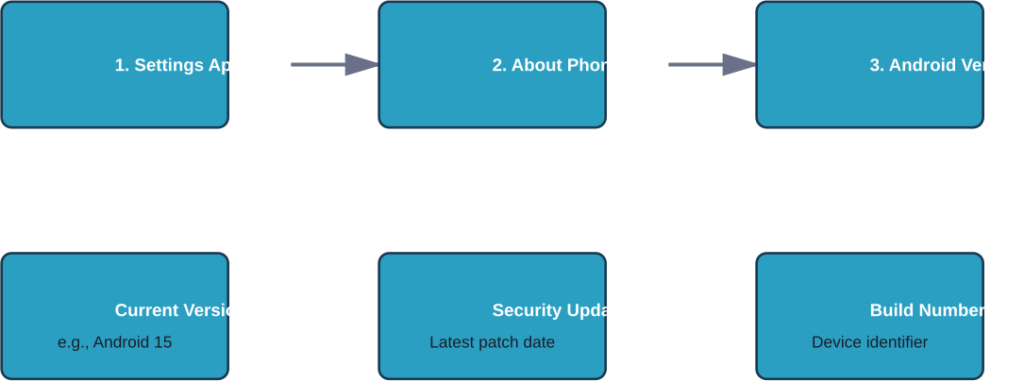
Knowing this information helps determine if an update is available for your specific device and model.
Essential Pre-Update Checklist
Before hitting that update button, prepare your device properly. Updates can take time and consume battery, so skipping this step risks interruption or damage.
| Requirement | Why It Matters |
|---|---|
| Wi-Fi Connection | Updates are large files. Cellular data usage would be excessive and unreliable. |
| Battery at 75%+ | Installation can take time depending on file size. Low battery can interrupt the process. |
| Available Storage | Updates require temporary space. Low storage can cause installation failures. |
| Backup Important Data | Rare failures can affect stored files. Backups prevent data loss. |
How to Update Android: Step-by-Step
Once your device is ready, updating is straightforward. You’ll receive a notification when updates are available, but you can also manually check.
Method 1: Via Notification — When an update notification appears, open it and tap the update action. The system handles the rest automatically.
Method 2: Manual Check — Open Settings, tap System, then System update or Software update (varies by manufacturer). If an update is available, follow the on-screen prompts. Your device may restart multiple times during installation, which is completely normal.
After installation completes, your device will restart. Don’t interrupt this process—let it finish even if it seems stuck.
Types of Android Updates Explained
Android delivers updates in three categories. Understanding them helps you prioritize which to install first.

Security updates should always be installed immediately—these close vulnerabilities that hackers actively exploit. Version updates bring features and improvements but take longer. Google Play System updates modernize core components without requiring a full OS overhaul.
What If Android Won’t Update?
Sometimes devices refuse to update. Common culprits include insufficient storage, poor connection, or outdated hardware that doesn’t support newer versions.
Clear cache files to free up space. Restart your device and try again. Check that Wi-Fi is stable—if disconnections occur, try a different network. If your device is older, it may have reached the end of its update support cycle.
Contact your device manufacturer’s support if problems persist. Samsung, Google, Xiaomi, and other makers maintain support pages with device-specific troubleshooting steps.
FAQ
Major version updates can take considerable time depending on file size. Security patches typically install faster. Time depends on device speed and connection quality.
No. Standard updates preserve all personal data, apps, and files. Always backup critical files anyway.
No. Updates require a restart. Attempting to use the phone interrupts installation.
Not all devices receive updates simultaneously. Rollouts happen in waves by region and carrier. Updates may not be available yet for your model.
Yes for security updates—install them right away. For version updates, wait a week or two if you prefer stability over early adoption.
Yes. Google releases Android versions first for Pixel phones. Other manufacturers modify the system with custom interfaces (Samsung One UI, Xiaomi HyperOS) before release, causing delays.
A unique identifier for your specific device version and update status. It helps support teams diagnose issues.
Key Takeaways
Keeping Android updated protects against security threats, improves performance, and unlocks new features. Check your current version first, prepare your device with a full charge and Wi-Fi connection, then update through Settings or notifications.
Don’t delay security updates. They’re fast and essential. Version updates bring significant changes and can wait if you prioritize stability. Regular updates ensure your device remains secure, stable, and feature-complete for years to come.