
Updating apps on Android and iPhone is essential for security, stability, and accessing new features. On Android, use Google Play to update apps manually or enable automatic updates; on iPhone, open the App Store and toggle automatic updates or manually update each app. Both platforms allow you to configure update settings based on your preference and connection type.
Why Update Your Apps?
App updates aren’t just about getting new features. According to Google Play support, updating to the latest version improves app security and stability while giving you access to the latest functionality. When developers release updates, they’re often addressing bugs, closing security vulnerabilities, or optimizing performance.
Think of updates as protective measures. Without them, you expose your device to potential security risks that bad actors could exploit. Keeping apps current ensures your personal data stays safe and your apps run smoothly.
How to Update Apps on Android
Android users have two straightforward approaches: manual updates through Google Play or setting everything to update automatically.
Manual Updates on Android
Open the Google Play app on your Android device. Tap your profile picture in the top right corner, then navigate to Settings. From there, select “Manage your apps and device.” You’ll see a list of apps with available updates. Tap “Update” next to any app you want to refresh, or select “Update all” to refresh everything at once.
This method gives you control. You can update apps one by one, review what’s changing, or wait until you’re on a strong Wi-Fi connection before updating large files.
Automatic Updates on Android
Want a hands-off approach? Open Google Play, go to Settings, then tap “Network preferences.” Select your preferred update conditions—whether you want apps updating on Wi-Fi only or on any connection. Once enabled, your apps update automatically when your device meets those conditions.

How to Update Apps on iPhone
iPhone users work through the App Store. The process is simple whether you prefer automatic or manual updates.
Automatic Updates on iPhone
On iPhone and iPad, apps from the App Store automatically update by default. If you want to confirm this setting is enabled, open Settings, then tap App Store, then turn on Automatic Updates. That’s it—your apps will now refresh in the background whenever new versions become available.
Manual Updates on iPhone
To update apps individually, open the App Store and tap the account icon at the top right. Scroll down to see pending updates and release notes. Tap “Update” next to any app, or select “Update All” to refresh everything at once.
| Platform | App Store | Update Method |
|---|---|---|
| Android | Google Play | Profile → Settings → Manage apps |
| iPhone | App Store | Account icon → Available Updates |
Best Practices for App Updates
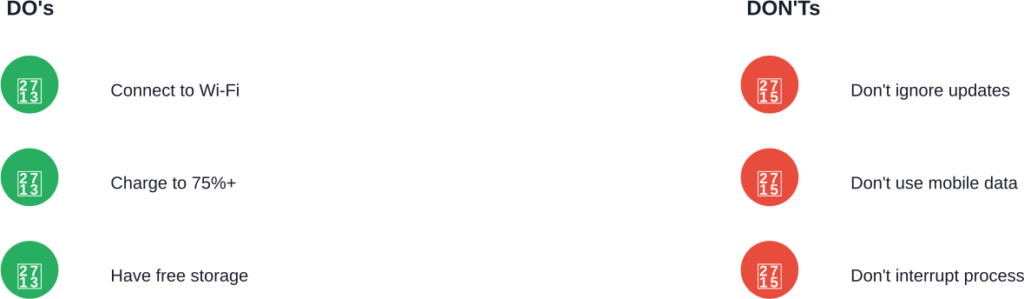
Connect to Wi-Fi when updating large apps. This saves mobile data and ensures a stable connection. Charge your device to at least 75% before updating.
If Google determines that an app update fixes a critical security vulnerability, Google may make certain app updates regardless of update settings. Apple works similarly—important iOS and app security patches deploy automatically to keep your iPhone safe.
Troubleshooting Update Issues
If apps won’t update, first check your internet connection. Ensure you’re connected to Wi-Fi and have enough storage space on your device. Clear the app store cache: on Android, go to Settings → Apps → Google Play → Storage → Clear Cache. On iPhone, try deleting and reinstalling the problematic app.
For persistent issues, restart your device and try again. Sometimes a simple reboot resolves connectivity problems between your device and the app store.
FAQ: App Update Questions Answered
Generally speaking, update apps as soon as new versions become available. Critical security patches should be installed immediately. Enabling automatic updates removes this burden entirely.
No. App updates preserve your data, settings, and login information. Updates only refresh the app code and resources.
Yes, but Wi-Fi is preferred. Large app updates consume significant data, so Wi-Fi connection protects your mobile plan and often provides faster speeds.
Check your storage space, restart your device, and clear the app store cache. If issues persist, try uninstalling and reinstalling the app.
No. Updates to apps you’ve already purchased are always free, whether on Android or iPhone.
Generally, no. App stores don’t support downgrading to previous versions for security and stability reasons.
Final Thoughts
Keeping your apps updated is one of the simplest yet most effective ways to maintain device security and performance. Whether you prefer hands-on control with manual updates or the convenience of automatic updates, both Android and iPhone make the process straightforward.
Set your preferences once and let your device handle the rest. Your security depends on it.