
Executive Summary: Google Play updates can be installed automatically or manually through the app settings. The process is straightforward for most users, though troubleshooting may be needed if updates fail. Regular updates improve security, stability, and access to new features on Android devices.
Google Play is one of the core components of the Android operating system, providing access to millions of apps, games, books, and other digital content. Like any application, Google Play itself requires regular updates to maintain security and functionality. But how exactly does updating work, and what’s the best approach for your device?
Why Update Google Play?
Updates aren’t just about new features. When Google Play updates to the latest version, security and stability improvements protect your device and personal data. Critical security patches can be installed regardless of device settings if they address serious vulnerabilities. Access to new functionality in the Play Store also depends on having the most current version installed.
Generally speaking, staying current with Google Play updates is essential for a smooth Android experience. Think of updates as maintenance that keeps everything running as intended.
Checking Your Current Google Play Version
Before updating, determine which version you’re currently running. Open the Google Play app, tap your profile icon in the top right corner, then select “Settings.” Navigate to “About the Play Store.” The version number displays at the top of this screen, along with information about available updates.
This quick check takes seconds and tells you whether an update is actually waiting for installation.
Automatic Updates: The Default Method
Here’s the thing though—Google Play updates automatically by default on most Android devices. The app checks for new versions in the background and installs them when connected to Wi-Fi or mobile data. This requires no action on the user’s part.
For automatic updates to work properly, ensure that:
- Your device has an active internet connection
- Sufficient storage space is available
- The device has been idle for a reasonable period
- Automatic app updates are enabled in Play Store settings
If you prefer automatic updates but they’re not happening, check these conditions first.

Manual Updates: Taking Control
Want to update immediately without waiting? Manual updates give you direct control. Open Google Play, access your profile settings, then navigate to “Settings” → “About the Play Store.” If an update is available, an “Update” button appears at the top of the screen.
Tapping this button initiates the download and installation process. Real talk: this method works best when connected to Wi-Fi, as it can consume significant data.
Troubleshooting When Updates Fail
Sometimes updates don’t proceed as expected. Before attempting advanced troubleshooting, check the obvious issues first. Is your internet connection stable? Do you have sufficient storage space (at least 1 GB recommended based on official guidance)? These factors alone prevent many failed updates.
If basic checks don’t help, clearing the Google Play cache often resolves stuck updates. Access Settings on your device, find the “Apps” or “Application Manager” section, locate Google Play, and select “Storage.” Tap “Clear Cache” to remove temporary files without deleting personal data.
For persistent problems, clearing all Google Play data provides a more thorough reset. This approach removes temporary files, cached content, and app data, forcing Google Play to rebuild its database on the next launch. Warning: you’ll need to sign back into your Google account after this step.
Understanding Google Play Services
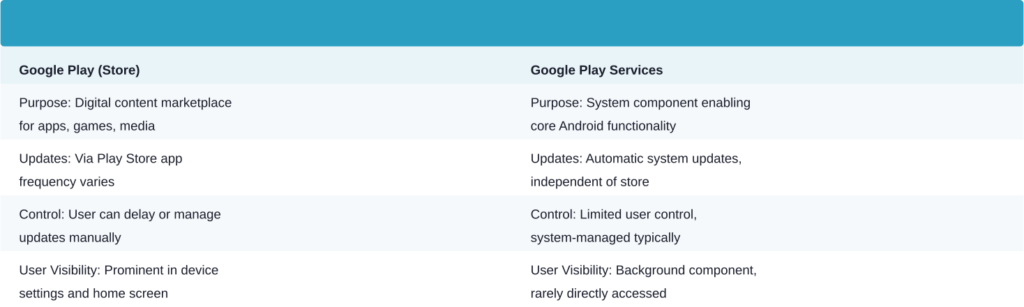
Don’t confuse Google Play—the app store—with Google Play Services, which is a different but related system component. Services like Google Play handle app updates and keep applications functioning correctly on Android devices. Both require regular updates, though they’re managed separately.
Google Play Services updates occur automatically on Android 6.0 (API level 23) and newer devices. Generally, users need not manually update Services unless experiencing specific app compatibility issues.
Frequently Asked Questions
Yes. In Play Store Settings, find the “Network Preferences” or “App Update” section and toggle off automatic updates. This gives you control over when updates install, though security patches may still occur automatically for critical vulnerabilities.
By default, updates download over any available connection. To restrict updates to Wi-Fi only, access Play Store Settings and configure the “App Update” preferences accordingly.
Most updates complete within 2-5 minutes on a stable connection. Larger updates or slower connections may take longer. The process runs in the background on automatic updates.
No visible update button means the latest version is already installed. Updates become available periodically—check back in a few days or weeks for the next release.
Never interrupt an active update. Force-stopping mid-installation can corrupt the app and require a full reinstall. Allow updates to complete fully before closing the app.
Storage space limitations, poor connection quality, or corrupted cache files prevent updates. Try clearing the cache first, ensuring stable Wi-Fi connectivity, and checking available storage before attempting another update.
If you use Google Play on Chromebook, special instructions apply for updating applications. Refer to Google’s Chromebook-specific documentation for detailed steps.
Best Practices for Keeping Google Play Current
Enable automatic updates and let the system handle maintenance in the background. This approach requires minimal effort while ensuring you always have the latest features and security protections.
Periodically check your installed apps for updates as well—keeping the entire ecosystem current creates a more stable environment. Connect to reliable Wi-Fi networks when possible to avoid data consumption and ensure smooth downloads.
And here’s something worth remembering: system-critical security updates bypass your preferences entirely. Google can push essential patches regardless of settings, which is actually a good thing for your device’s safety.
Conclusion
Updating Google Play is straightforward, whether through automatic background updates or manual intervention via the app’s settings menu. The process takes just minutes and delivers meaningful improvements in security, stability, and new features. Don’t overthink it—set automatic updates and let your device handle the maintenance, or manually update whenever you prefer direct control. Either way, staying current with Google Play keeps your Android device functioning optimally and securely.