
Quick Summary: Google has started rolling out a new feature that allows some users to change their Gmail address (@gmail.com) without creating a new account or losing data. However, this option isn’t available to everyone yet. If you don’t have access, you can create a new Gmail account, use email aliases, or set up forwarding as alternatives.
For years, the answer was a frustrating “no.” Once you created a Gmail account, that username followed you forever. Whether you picked “cooldude1982” as a teenager or used an outdated business name, you were stuck with it.
But things are changing.
Google started rolling out a feature in 2025 that lets users change their Gmail address without creating a new account or losing their emails, contacts, and Google Drive data. The catch? It’s not available to everyone yet.
Here’s what you need to know about changing your Gmail address, including when you can do it, how the process works, and what alternatives exist if you don’t have access yet.
The Big Change: Google Now Allows Gmail Address Changes
According to Google’s official support documentation, users can now change their Google Account email address that ends in @gmail.com to a different address that also ends in @gmail.com. This represents a massive shift from Google’s long-standing policy.
The ability to change your Google Account email is gradually rolling out to all users, and the option may not be available yet if you don’t see it in your account settings. There’s no official timeline for when everyone will have access, but the rollout accelerated throughout late 2025 and early 2026.
What Your Google Account Email Actually Is
Your Google Account email serves multiple purposes. It’s what you use to sign into Google products and services like Gmail, YouTube, Google Drive, and Google Photos. When you’re signed in, this email address shows up next to your name and profile photo across all Google services.
This is also where you receive important information from Google about your account security, storage limits, and service updates.
How to Check If You Can Change Your Gmail Address
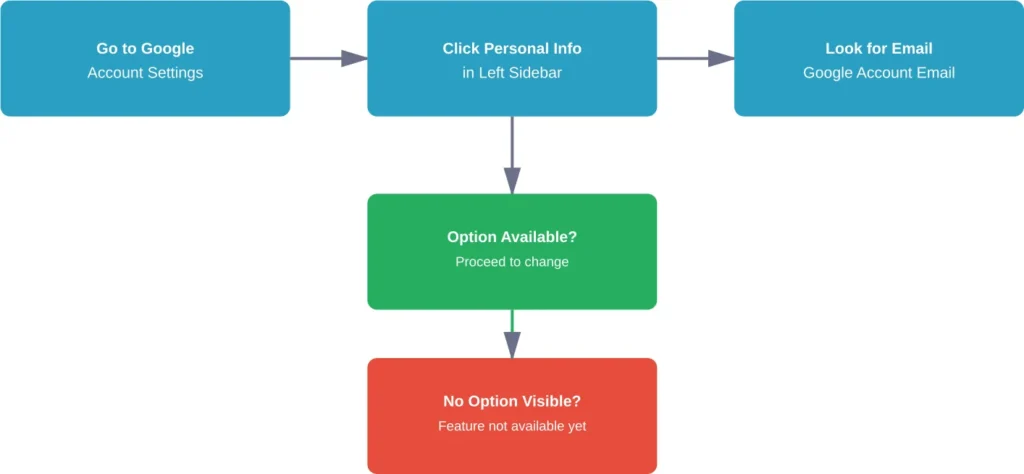
Not everyone has access to this feature yet. Here’s how to check if it’s available for your account:
- Go to your Google Account settings page
- Click on “Personal info” in the left sidebar
- Look for “Email” and then “Google Account email”
- Click on the Google Account email option
If you can’t open this setting or don’t see an option to change your email address, the feature isn’t available to you yet. According to Google’s official documentation, if the option doesn’t show up, this feature isn’t currently available to your account.
The feature appears to be rolling out in waves, with some users gaining access while others in the same region still wait.
Step-by-Step: How to Change Your Gmail Address
If the feature is available to you, here’s the official process according to Google’s support documentation:
Before You Begin: Review Potential Issues
Google recommends reviewing potential issues before making the change. Your old email address becomes an alias, which means you’ll still receive emails sent to both your old and new addresses. But there are a few things to consider:
- Some services linked to your old email might need manual updating
- People who have your old address saved will still see it until they update their contacts
- Your YouTube channel name won’t automatically change
The Change Process
Once you’ve reviewed the implications, follow these steps:
- Navigate to your Google Account settings
- Click “Personal info” in the left navigation
- Select “Email” and then “Google Account email”
- Click the edit icon or “Change” button
- Enter your desired new Gmail address
- Check if it’s available (it must not be taken by another user)
- Confirm the change
- Follow any additional verification steps Google requires
The process typically takes just a few minutes, though some users report delays of up to 24 hours before the change fully propagates across all Google services.
What Happens After You Change Your Gmail Address
Your old Gmail address doesn’t just disappear. According to Google’s official documentation, it becomes an automatic alias. This means:
- You’ll receive emails sent to both your old and new addresses
- Your old address continues to work for receiving mail
- All your emails, contacts, calendar events, and files remain intact
- Your Google account history and data are preserved
- Services you’re signed into stay connected
However, when you send emails, they’ll come from your new address by default. You can’t send emails from your old address unless you manually add it back as an alias through Gmail’s “Send mail as” settings.
Important Limitations and Restrictions
The new feature comes with several important guardrails worth knowing before you attempt a change:
| Limitation | Details |
|---|---|
| Availability | Feature is still rolling out; not available to all users yet |
| Domain Restriction | Can only change from one @gmail.com address to another @gmail.com address |
| Username Uniqueness | New address must be available and not taken by another user |
| Workspace Accounts | Not available for Google Workspace (business/school) accounts |
| Frequency Unknown | Google hasn’t clarified how often you can change your address |
Some users report being locked out of the feature after multiple changes, suggesting there may be rate limits.
What You Still Can’t Change
It’s critical to understand what this new feature doesn’t let you do. According to Google’s official help documentation on changing your name, you cannot:
- Change your username if you’re using a Google Workspace account (through work, school, or an organization)
- Switch from @gmail.com to a different domain (like your own custom domain)
- Change to a non-Gmail address as your Google Account email
- Recover a deleted Gmail username
The name that appears when you send emails can be changed separately through Gmail settings under “Accounts and Import,” but that’s different from your actual email address. Many people confuse changing the display name with changing the email address itself.
Alternative Methods If You Can’t Change Your Address Yet
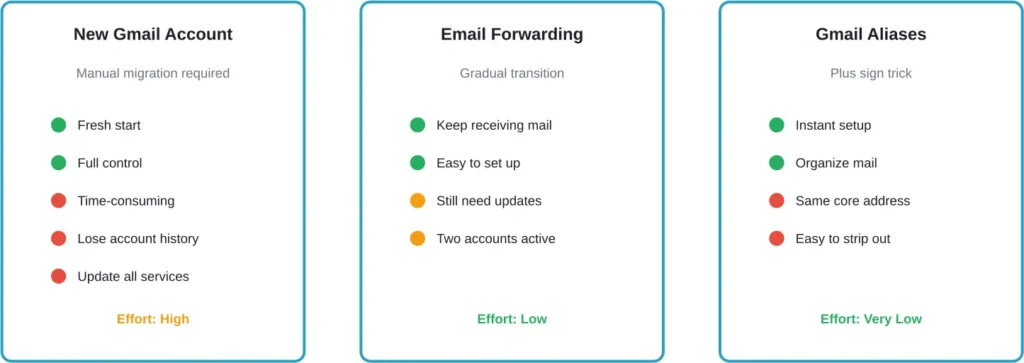
If the new feature isn’t available for your account, you’re not completely out of options. Several alternative approaches can help you transition away from an old Gmail address.
Create a New Gmail Account
The traditional approach still works. You can create a brand new Gmail account with your desired address. The downside? You’ll need to manually migrate your data and update services connected to your old account.
Here’s what you’ll need to transfer:
- Import emails from your old account using POP or IMAP
- Export and import contacts
- Transfer Google Drive files (or share folders with your new account)
- Update subscriptions and service logins
- Notify contacts of your new address
This method works, but it’s time-consuming. The migration process can take several hours to complete thoroughly.
Set Up Email Forwarding
Rather than fully switching, you can automatically forward emails from your old Gmail address to a new one. This keeps your old address functional while you gradually transition.
To set up forwarding:
- Open Gmail settings in your old account
- Navigate to “Forwarding and POP/IMAP”
- Click “Add a forwarding address”
- Enter your new email address
- Verify the forwarding address through the confirmation email
- Choose whether to keep, archive, or delete forwarded messages
This approach gives you time to update services gradually without losing emails sent to your old address.
Use Email Aliases and Filters
Gmail already supports a form of aliasing using the plus sign (+) trick. You can add “+anything” before the @ symbol in your Gmail address, and emails will still reach you.
For example, if your email is [email protected], you can give out:
- [email protected] for retail accounts
- [email protected] for professional contacts
- [email protected] for subscriptions
All these variations deliver to your main inbox, but you can create filters to organize them automatically. While this doesn’t change your actual address, it helps you manage different contexts and track which services share your email.
Why Changing Your Gmail Address Matters
The desire to change email addresses isn’t just about vanity. There are legitimate reasons users want to modify their Gmail addresses:
Professional transitions: Moving from a casual personal address to something more professional matters when job hunting or building a business.
Privacy concerns: An old email address might contain personal information like birth years or full names you’d rather not broadcast.
Rebranding: Business names change, personal brands evolve, and email addresses often need to follow.
Security issues: If an email address has been compromised or appears in data breaches, changing it adds a layer of security.
Life changes: Marriage, divorce, or other major life events might prompt a name change that makes the old email address obsolete.
For years, the only solution was creating a new account and going through the painful migration process. The new feature, when fully rolled out, addresses a long-standing user complaint.
What About Google Workspace Accounts?
If you’re using Gmail through a Google Workspace account (formerly G Suite) provided by your employer, school, or organization, you can’t use this feature to change your email address yourself.
According to Google’s official documentation, if you can’t open the email change setting, you might not be able to change your email or username. The documentation specifically notes that users with accounts through work, school, or other groups should ask their administrator for help.
Workspace administrators have different tools for managing email addresses, but those decisions rest with the organization, not the individual user.
Common Issues When Changing Your Gmail Address
Based on community discussions and Google’s official troubleshooting guidance, users encounter several common problems:
The Option Doesn’t Appear
This is the most common issue. If you don’t see the option to change your Google Account email, the feature simply isn’t available to you yet. There’s no way to request early access or speed up the rollout.
Desired Username Is Taken
Gmail addresses must be unique. If someone already has the username you want, you’ll need to choose something else. Google doesn’t release inactive usernames, even if the account hasn’t been used in years.
Change Doesn’t Take Effect Immediately
Some users report delays between changing their address and the change appearing across all Google services. Generally speaking, most changes propagate within 24 hours, though some services might take longer to update.
Third-Party Services Don’t Update Automatically
Your Google services will recognize your new email address, but external services won’t automatically update. You’ll need to manually change your email address on banking sites, shopping accounts, social media, and other services.
Tips for a Smooth Transition
If and when you get access to change your Gmail address, these practices can make the transition smoother:
Create a list of every service connected to your old email address. Browser password managers can help identify accounts you might forget. Work through the list systematically, updating each service to your new address.
Notify important contacts directly rather than assuming they’ll notice when they receive an email from your new address. Send a dedicated message explaining the change.
Keep your old address active as an alias for at least six months. This gives you time to catch any services you missed and ensures you don’t lose access to accounts you forgot about.
Update your email signature, business cards, and anywhere else your email appears publicly. Check social media profiles, website contact pages, and directory listings.
Set up filters in Gmail to label emails arriving at your old address differently. This helps you track which services still have your old email and need updating.
Frequently Asked Questions
Yes, if you have access to Google’s new feature, you can change your Gmail address without losing any emails, contacts, or data. Your old address becomes an alias that continues to receive mail. If you don’t have access to the feature yet, you’ll need to create a new account and manually migrate your data, or set up forwarding from your old account.
The ability to change your Gmail address is gradually rolling out and may not be available to your account yet. Google hasn’t announced when all users will have access. Additionally, the feature isn’t available for Google Workspace accounts managed by organizations. If you’re using an account through work or school, your administrator controls email address changes.
Google hasn’t officially disclosed how frequently users can change their Gmail address. Based on community discussions, there appear to be rate limits to prevent abuse, and some users report being locked out of the feature after multiple changes. It’s best to treat this as a one-time or infrequent change rather than something you can do repeatedly.
No, your old Gmail address becomes an automatic alias and continues to receive emails. You’ll get messages sent to both your old and new addresses. However, when you send emails, they’ll come from your new address by default unless you manually configure Gmail to send from your old address using the “Send mail as” feature.
No, the new feature only allows changing from one @gmail.com address to another @gmail.com address. You cannot change to a custom domain or different email provider through this feature. If you want to use a custom domain with Google services, you’ll need to look into Google Workspace, which has different setup requirements.
According to Google’s official documentation, changing your Google Account email doesn’t automatically change your YouTube channel name or profile picture. Your YouTube presence remains separate and requires its own updates through YouTube’s channel branding settings if you want to modify how your channel appears.
No, once you change your Gmail address, your old username might become available for others to claim. Google doesn’t reserve your old username or allow you to reclaim it if someone else registers it. Make absolutely sure you want to change before proceeding, as the old address may not be recoverable.
The Bottom Line on Changing Your Gmail Address
Google’s rollout of the Gmail address change feature represents a significant shift after years of users requesting this capability. For those who have access, it solves a long-standing frustration and allows for cleaner professional transitions without the headache of creating entirely new accounts.
But the gradual rollout means many users are still waiting. If you don’t see the option yet, your best alternatives remain creating a new account with careful data migration, setting up forwarding to bridge the transition, or using Gmail’s built-in alias features for organizational purposes.
The feature’s limitations—restricted to @gmail.com addresses, unavailable for Workspace accounts, and subject to username availability—mean it won’t solve every email change scenario. Still, for personal Gmail users who gain access, it’s a welcome addition that preserves years of account history while allowing for a fresh start.
Check your Google Account settings periodically to see if the option becomes available. When it does, take time to plan your transition carefully, update your important services, and notify key contacts. A methodical approach ensures you don’t lose access to critical accounts or miss important messages during the changeover.
Visit your Google Account settings today to check if you have access to this feature, and start planning your transition to a Gmail address that better represents who you are now.