

Quick Summary: Deleting the System32 folder will render a Windows computer completely inoperable, causing immediate crashes or an inability to boot. This folder contains critical core operating system files, including essential drivers and core processes like ntoskrnl.exe and lsass.exe. Recovery requires either restoring from a backup image or performing a complete Windows reinstallation.
Apparently, there’s a prank running around the internet suggesting that deleting the System32 folder will speed up a computer or fix mysterious problems. It’s a trap.
This isn’t just bad advice. It’s essentially digital sabotage that can destroy a Windows installation in seconds. Here’s what really happens when someone deletes System32, why this folder matters so much, and what options exist if critical files go missing.
What Is the System32 Folder?
The System32 folder lives at C:\Windows\system32 on Windows installations including Windows Vista, Windows 7, Windows 8, Windows 8.1, Windows 10, and Windows 11. It contains the core executable files, dynamic link libraries (DLLs), and device drivers that Windows needs to function.
Think of it as the heart and brain of the operating system combined. Without System32, Windows cannot start, cannot run programs, and cannot even display error messages properly.
According to Microsoft support documentation, this folder houses critical system files that the operating system depends on. When these files are missing or corrupted, Windows experiences catastrophic failures including blue screen errors and complete boot failures.
System32 contains thousands of files. Some of the most critical ones include:
- ntoskrnl.exe – The Windows kernel itself
- lsass.exe – The Local Security Authority process that handles user authentication
- winload.efi – The boot loader for UEFI systems
- Device drivers – Files like wdf01000.sys and tcpip.sys that control hardware and networking
Microsoft’s official documentation shows that when critical files like ntoskrnl.exe or lsass.exe are missing, the system cannot proceed past boot screens. These aren’t optional components. They’re foundational.
What Actually Happens When You Delete System32
Here’s the thing though—Windows doesn’t make it easy to delete System32, even if someone tries. The operating system protects this folder with multiple layers of security.
First, standard user accounts don’t have permission to delete system files. The folder is owned by the SYSTEM account and protected by Windows Resource Protection.
But let’s say someone gains administrator access and forcibly removes these protections. What then?
The Immediate Consequences
If deletion succeeds while Windows is running, the system becomes unstable within seconds. Programs crash. The desktop may freeze. Often, a blue screen appears almost immediately.
According to Microsoft Q&A documentation, missing critical files like system32\drivers\tcpip.sys or system32\lsass.exe trigger immediate system failures. The OS can’t maintain basic operations without these components.
As one technical case documented on Microsoft’s support forums shows, after System32 files were deleted during a botched upgrade, the computer refused to start past any of eleven different blue screens. Critical files including ntoskrnl.exe and winload.efi were missing, making boot impossible.
If the system doesn’t crash immediately, it definitely won’t boot the next time. The boot sequence requires dozens of files from System32. Without them, Windows can’t even load the kernel.

The Boot Failure
On restart, the computer displays error messages like:
- “Boot critical file C:\Windows\system32\drivers\[filename] is corrupt”
- “The operating system couldn’t be loaded because a critical system driver is missing”
- Error codes like 0xc000007b or 0xc0000374
These errors match documentation from Microsoft Learn showing real-world cases where missing System32 files prevented boot. Without critical components, the boot process simply can’t proceed.
Safe Mode won’t help either. Safe Mode still needs core System32 files to load, even in its minimal state.
Why Windows Protects System32
Windows implements several protection mechanisms specifically to prevent System32 deletion:
| Protection Mechanism | What It Does | Can It Be Bypassed? |
|---|---|---|
| TrustedInstaller Ownership | System32 is owned by the TrustedInstaller account, not administrators | Yes, with permission changes |
| Windows Resource Protection | Monitors and prevents changes to protected system files | Difficult, requires specific tools |
| File-in-use Protection | Running files can’t be deleted while Windows is active | No, unless booted from external media |
| UAC Prompts | User Account Control requests confirmation for system changes | Yes, if user confirms |
Even with administrator rights, standard deletion attempts fail. Windows displays “Access Denied” messages because the files are protected and actively in use.
The only way to actually delete System32 involves either booting from external media (like a USB drive) and deleting files while Windows isn’t running, or using specialized tools to bypass protection mechanisms.
What About Deleting System32 on a Non-OS Drive?
One legitimate question that appears in Microsoft community discussions: what if an old Windows installation exists on a secondary drive that’s no longer used for booting?
The short answer? Deleting that System32 folder is safe for the current operating system.
If a secondary SSD or hard drive contains an old Windows installation that’s just sitting there taking up space, removing its System32 folder won’t affect the active Windows installation running from a different drive. The operating system only depends on its own System32 folder.
That said, it makes more sense to format the entire drive or delete the entire Windows folder rather than just System32. But critically, it won’t damage the working OS.
How to Recover From Deleted or Missing System32 Files
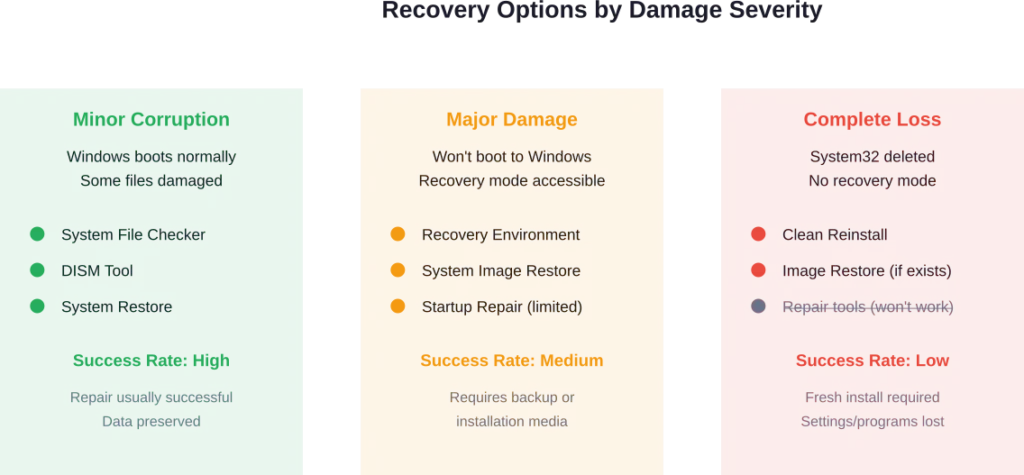
If System32 files are actually missing—whether from deletion, corruption, or malware—recovery options are limited but do exist.
Option 1: System File Checker
For minor corruption where Windows still boots, Microsoft’s System File Checker can repair damaged files.
According to Microsoft support documentation, administrators can run this command from Command Prompt:
sfc /scannow
This tool scans all protected system files and replaces corrupted versions with correct copies from a cached version. But this only works if Windows can still boot to a command prompt or recovery environment.
Option 2: DISM Tool
The Deployment Image Servicing and Management tool can repair Windows images when System File Checker can’t fix issues. Microsoft documentation indicates this is useful for more extensive system file damage.
Again, this requires at least partial system functionality to run.
Option 3: Restore From Backup
If complete deletion occurred and the system won’t boot, the most reliable recovery method is restoring from a system image backup taken before the deletion.
This requires having created a backup previously using Windows Backup, third-party imaging software, or system restore points. Without a backup, this option doesn’t exist.
Option 4: Complete Reinstallation
When System32 is truly gone and no backup exists, a complete Windows reinstallation is the only option. This means:
- Creating Windows installation media on another computer
- Booting from that media
- Performing a fresh Windows install
- Losing all programs and settings (though personal files might be preserved)
Real talk: if someone falls for the System32 deletion prank and actually removes these files, reinstallation is almost always the outcome. Recovery tools need at least some OS functionality to work, and without System32, there isn’t any.
Why This Prank Persists
The “delete System32” prank has existed for years, cycling through different forms on forums, social media, and tech communities. Why does it keep working?
Several factors contribute:
Believable premise. To non-technical users, the claim that deleting unused system files improves performance sounds plausible. Many legitimate optimization guides do recommend removing unnecessary files.
Technical-sounding advice. Scammers often present the instruction using technical language that appears authoritative. Community discussions show users encountering posts that claim System32 is “bloatware” or “unnecessary legacy files.”
Curiosity and experimentation. Some users simply wonder what would happen, treating it as an experiment. YouTube videos demonstrating System32 deletion in virtual machines unfortunately normalize the action.
But wait. Even though Windows makes it difficult, the protection mechanisms aren’t perfect. Someone determined enough can bypass them, especially if they follow step-by-step malicious instructions.
Legitimate Reasons System32 Files Might Be Missing
Not every System32 problem comes from deliberate deletion. Files can go missing or become corrupted through:
- Failed Windows updates – Interrupted upgrades sometimes corrupt system files
- Disk errors – Bad sectors on hard drives can corrupt any file, including system files
- Malware – Some malicious software specifically targets system files
- Hardware failures – RAM problems or drive failures manifest as file corruption
Cybersecurity guidance indicates that malware can target system files as part of attack chains. When legitimate corruption occurs, the recovery methods described earlier apply. The System File Checker and DISM tools exist specifically because system file corruption happens in real-world scenarios, even without pranks.
Frequently Asked Questions
Absolutely not. This is a malicious prank. Deleting System32 destroys Windows completely, making the computer unbootable. It contains essential operating system files that Windows requires to function. The computer will crash immediately or fail to boot on restart.
Windows actively prevents System32 deletion through multiple protection mechanisms including TrustedInstaller ownership, Windows Resource Protection, and file-in-use locks. Standard users and even administrators will see “Access Denied” errors. However, these protections can be bypassed using external boot media or specialized tools, which should never be done.
If Windows still boots, run the System File Checker tool by opening Command Prompt as administrator and typing “sfc /scannow” without quotes. This scans and repairs corrupted system files. If Windows won’t boot, use Windows Recovery Environment or restore from a system image backup if available. Complete deletion requires Windows reinstallation.
Yes, if the drive isn’t being used to boot the computer. An old System32 folder on a secondary drive that contains a previous Windows installation won’t affect the current operating system. However, it’s more efficient to format the entire drive or delete the whole Windows folder rather than just System32.
Symptoms include blue screen errors, programs failing to launch, boot failures, or error messages specifically mentioning files in C:\Windows\system32. Microsoft support documentation shows error codes like 0xc000007b or messages about missing critical system drivers often indicate System32 file problems. Running System File Checker can diagnose corruption.
Only if a complete system image backup exists from before the deletion. Without a backup, recovery tools won’t work because they need System32 files to run. If the entire folder was deleted, Windows lacks the fundamental components needed for any repair process, making complete reinstallation the only option.
It’s malicious misinformation designed to damage computers. The prank persists because it sounds plausible to non-technical users—deleting “system files” might seem like it could free up space or improve performance. Technical-sounding instructions make it appear legitimate. Windows protections make it difficult to execute, but determined users following detailed malicious instructions can bypass safeguards.
Conclusion: Don’t Fall for This Trap
The System32 folder contains critical core operating system files and components. Deleting it doesn’t speed up computers, fix problems, or free up useful space. It destroys the operating system completely.
Windows implements multiple protection layers specifically because these files are critical. When those protections are bypassed, the result is always the same: a completely non-functional computer requiring either backup restoration or full reinstallation.
If encountering advice to delete System32—whether as a supposed optimization, troubleshooting step, or “experiment”—ignore it entirely. It’s always a prank, scam, or malicious instruction with no legitimate use case.
For users experiencing genuine System32 file corruption from hardware failures, malware, or failed updates, recovery tools like System File Checker exist. But these repair corrupted files. They can’t resurrect a deleted operating system.
Check Microsoft’s official support documentation for legitimate Windows troubleshooting guidance. Stick to verified sources and maintain regular backups. The System32 folder should never be modified, moved, or deleted under any circumstances.