
Quick Summary: When you block someone on iPhone, they can’t call, text, or FaceTime you directly. Their calls go to voicemail, texts aren’t delivered, and they receive no notification that you’ve blocked them. The blocking works across all Apple devices synced to your Apple Account.
Getting spammed with unwanted calls and messages? Blocking a contact on iPhone is one of the most effective privacy tools built into iOS. But there’s a lot of confusion about what actually happens when you hit that block button.
Does the person know they’re blocked? Can they still leave voicemails? What about apps like WhatsApp or Instagram?
Here’s the thing though—blocking on iPhone is more comprehensive than most people realize. It doesn’t just silence calls. According to Apple’s official support documentation, blocking affects phone calls, FaceTime, Messages, and even email across all devices signed into your Apple Account.
This guide breaks down exactly what happens when you block someone on iPhone, covering every scenario from incoming calls to third-party apps.
How iPhone Blocking Actually Works
When you block a phone number, contact, or email address on iPhone, the blocking happens at the system level. This isn’t just a mute feature—it’s a complete communication barrier for Apple’s native services.
The blocked contact’s number gets added to your device’s block list, which syncs across all Apple devices connected to your Apple Account. That means blocking someone on your iPhone automatically blocks them on your iPad, Mac, and Apple Watch.
But wait.
Third-party messaging apps like WhatsApp, Telegram, Snapchat, and Instagram aren’t affected by iPhone’s native blocking. These apps have their own separate blocking systems. Someone blocked in your iPhone settings can still message you through WhatsApp unless you also block them within that specific app.
Where Blocking Takes Effect
According to Apple’s official support documentation, blocking works in these native apps:
- Phone: All voice calls from the blocked number
- Messages: SMS, MMS, and iMessages
- FaceTime: Video and audio FaceTime calls
- Mail: Emails from blocked addresses go to trash
The blocking happens instantly once you add someone to your blocked list, and it persists until you manually unblock them.
What Happens to Phone Calls When You Block Someone
This is what most people want to know. When a blocked contact tries calling you, their call doesn’t ring through to your iPhone at all.
On their end, the call typically rings once, sometimes twice, then goes straight to voicemail. They won’t hear a busy signal or a message saying they’ve been blocked. The experience mimics what happens when someone’s phone is off or out of service.
Real talk: there’s no obvious indication they’ve been blocked.
Some carriers might handle blocked calls slightly differently, but the end result is the same—the call doesn’t reach you, and the caller gets sent to voicemail without any blocking notification.
Can Blocked Callers Leave Voicemails?
Yes, they can. But you won’t receive a notification about it.
Blocked callers can still leave voicemails, but these messages get filtered into a separate section called “Blocked Messages” at the bottom of your voicemail list in the Phone app. Most people never check this section, so these voicemails effectively disappear.
If you want to review voicemails from blocked contacts, open the Phone app, tap Voicemail, scroll to the very bottom, and tap “Blocked Messages.” The messages sit there indefinitely until you delete them.
What Happens to Text Messages When You Block Someone
Text message blocking works differently depending on whether the message is sent as an SMS/MMS or an iMessage.
For iMessages (the blue bubbles), messages from blocked contacts simply don’t deliver. On the sender’s side, the message appears to send normally—they see the “Delivered” status disappear, but they don’t get an error message or a “blocked” notification.
The message sits in limbo. It’s sent from their device but never arrives on yours.
For SMS and MMS messages (green bubbles), the blocking behavior is similar. The blocked person can send the message, it appears to send from their phone, but it never reaches your device. Cellular carriers handle the filtering based on the block list your iPhone provides.
Group Messages and Blocking
Group messaging gets messy when blocking is involved.
If you block someone who’s part of a group iMessage thread, you’ll still receive the group messages—including messages from the blocked person within that group conversation. iPhone’s blocking doesn’t extend to group contexts for iMessage.
The only way to stop seeing messages from a blocked contact in group threads is to leave the group entirely or ask the group admin to remove that person.
What Happens to FaceTime Calls When You Block Someone
FaceTime blocking is straightforward. According to Apple’s support documentation, blocked contacts cannot FaceTime you—neither video nor audio calls go through.
When a blocked contact tries to FaceTime you, the call appears to connect on their end, but it never rings on your device. After several rings, they’ll see a “FaceTime Unavailable” message or the call will simply fail without explanation.
Like phone calls, there’s no notification that they’ve been blocked. The experience resembles trying to call someone whose device is offline or who has FaceTime disabled.
FaceTime blocking also syncs across devices. Blocking someone on your iPhone prevents their FaceTime calls from reaching your iPad, Mac, or any other device signed into your Apple Account.
How to Block Someone on iPhone
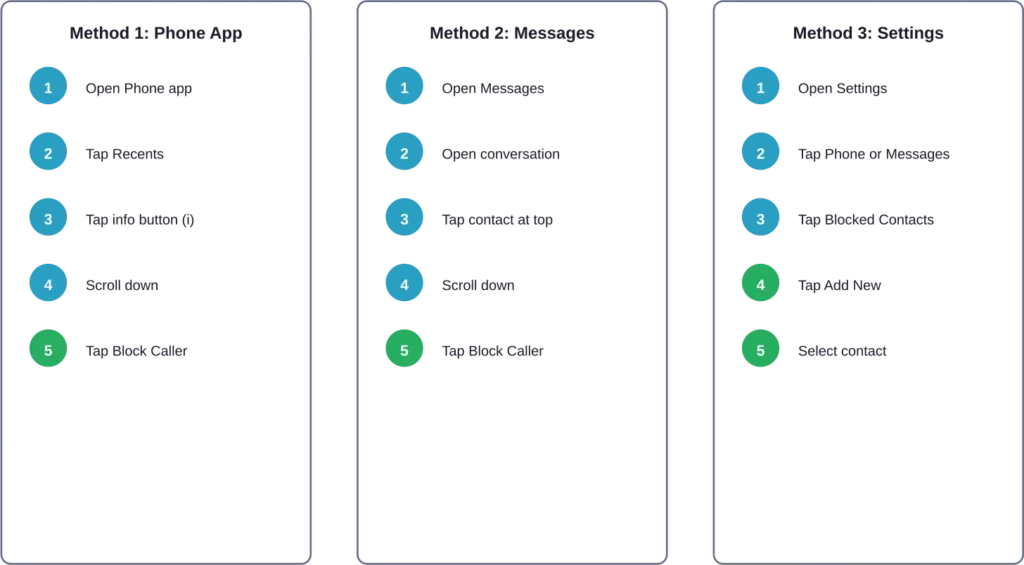
Apple provides multiple ways to block contacts depending on which app you’re using. The block list is universal—adding someone via Phone, Messages, or FaceTime produces the same result.
Blocking via Phone App
From the Phone app, tap Recents to view recent calls. Find the number you want to block, then tap the small (i) info button next to it. Scroll down to the bottom and tap “Block this Caller.” Confirm by tapping “Block Contact.”
Blocking via Messages App
Open the Messages app and select the conversation with the contact. Tap the contact’s name or number at the top of the screen. Scroll down and tap “Block this Caller,” then confirm.
Blocking via Settings
For managing your entire blocked list, go to Settings, then scroll to either Phone, Messages, or FaceTime. Tap “Blocked Contacts” to see everyone you’ve blocked. Tap “Add New” to block additional contacts from your address book.
This Settings method is the easiest way to review and manage all blocked contacts in one place.
Managing Your Blocked Contacts List
The blocked contacts list lives in your iPhone’s Settings and syncs across all devices connected to your Apple Account. Managing this list is simple.
To view all blocked contacts, navigate to Settings > Phone > Blocked Contacts (or Settings > Messages > Blocked Contacts—both show the same list). Here you’ll see every phone number, contact, and email address you’ve blocked.
How to Unblock Someone
Made a mistake? Unblocking is just as easy as blocking.
Go to Settings > Phone > Blocked Contacts. Swipe left on the contact you want to unblock, then tap “Unblock.” That contact can immediately call, text, and FaceTime you again.
Unblocking also syncs across devices. Remove someone from your block list on iPhone, and they’re unblocked on your iPad and Mac too.
Does the Blocked Person Know They’re Blocked?
No. Apple doesn’t send any notification to someone when they’re blocked.
The blocked person won’t receive a message saying “This user has blocked you.” Instead, their calls and messages simply fail to connect in ways that could have other explanations—phone turned off, out of service, technical issues.
That said, they might figure it out eventually. If their calls consistently go to voicemail after one ring, and their texts never show “Delivered,” and this pattern continues for days or weeks, they can infer they’ve been blocked.
But there’s no official confirmation from Apple’s system. The blocking happens silently.
What Clues Might Tip Them Off?
Savvy users might notice these patterns:
- Calls always go to voicemail after one ring
- iMessages never show “Delivered” status
- FaceTime calls never connect
- The pattern persists across days or weeks
Some community discussions on forums indicate that people may not immediately realize they’ve been blocked—they assume technical problems first. Only persistent failure over time raises suspicion.
What Blocking Doesn’t Affect
Understanding the limits of iPhone blocking is just as important as knowing what it does.
Third-Party Apps
Blocking someone in iPhone settings has zero effect on third-party messaging apps. Someone blocked on iPhone can still:
- Message you on WhatsApp
- DM you on Instagram
- Contact you via Snapchat
- Reach you through Telegram
- Send LinkedIn messages
- Comment on your social media posts
Each platform has its own separate blocking system. If you want complete communication cutoff, block them in iPhone settings and within each individual app they might use to contact you.
Email Beyond Mail App
Blocking an email address in iPhone settings only affects Apple’s native Mail app. Emails from blocked addresses automatically move to trash in the Mail app.
But if you access email through third-party apps like Gmail, Outlook, or Yahoo Mail, iPhone’s block list doesn’t apply. You’ll need to set up email filters or blocking within those specific email services.
Shared Contacts and Groups
Blocking doesn’t remove shared calendar events, shared notes, or shared photos. If you and the blocked person both have access to a shared iCloud album or collaborative note, they can still add content there.
For complete separation, you’ll need to remove them from shared resources manually.
Privacy and Security Considerations
Blocking is a privacy tool, but it’s not a comprehensive security solution. Understanding its role in your overall digital safety matters.
According to the Federal Communications Commission, U.S. consumers received nearly 5 billion robocalls monthly in 2025, making call blocking one of the top consumer protection priorities. The FCC has pushed carriers to implement network-level call blocking to combat illegal robocalls and spam.
iPhone’s blocking feature complements these carrier-level protections. Between carrier spam filters and manual blocking on your device, most unwanted communications get filtered out.
When Blocking Isn’t Enough
In situations involving harassment, stalking, or threats, blocking alone might not suffice. Additional steps include:
- Documenting all contact attempts (check “Blocked Messages” voicemails)
- Reporting to local law enforcement
- Filing for a restraining order if legally necessary
- Contacting your carrier to block at the network level
- Changing your phone number as a last resort
Apple’s Safety Check feature, available in Settings > Privacy & Security, helps manage who has access to your location, photos, and other personal information. It’s designed for situations where personal safety is a concern.
Carrier-Level Blocking vs iPhone Blocking
Your cellular carrier also offers blocking tools that work differently from iPhone’s native blocking.
Carrier blocking happens at the network level, before calls even reach your device. Major carriers like AT&T, Verizon, and T-Mobile provide apps and services that identify spam calls, block robocalls, and filter scam attempts.
These carrier tools work alongside iPhone blocking. Some people use both—iPhone blocking for specific contacts they know, and carrier spam blocking for unknown robocalls and scammers.

| Feature | iPhone Blocking | Carrier Blocking |
|---|---|---|
| Known Contact Blocking | Excellent | Limited |
| Spam Call Detection | No | Yes |
| Syncs Across Devices | Yes (Apple ecosystem) | No |
| Cost | Free | Varies (often $3-5/month) |
| Third-Party Apps | Not affected | Not affected |
| Setup Complexity | Very simple | Moderate |
Most iPhone users benefit from using both blocking methods together. Carrier tools catch unknown spam, while iPhone blocking handles specific unwanted contacts.
Advanced Blocking Features in iOS
Beyond basic blocking, recent iOS versions include additional privacy and filtering tools.
Silence Unknown Callers
Settings > Phone > Silence Unknown Callers automatically sends calls from numbers not in your contacts straight to voicemail. The calls still appear in your recent calls list, but they don’t ring through.
This feature is aggressive—it silences legitimate calls from unknown numbers like delivery drivers, doctor’s offices, or new business contacts. Use it selectively when spam is overwhelming.
Filter Unknown Senders in Messages
Settings > Messages > Filter Unknown Senders creates a separate tab in Messages for texts from people not in your contacts. These messages don’t trigger notifications, and you can review them separately.
It’s less aggressive than blocking but keeps unknown message notifications from interrupting.
Communication Safety
For families, Screen Time offers communication limits. Parents can control who children can communicate with and during what hours. This works separately from blocking but serves similar protective purposes.
How Blocking Affects Different Communication Types
Different communication methods behave slightly differently when someone is blocked.
| Communication Type | Blocked Behavior | Sender Experience | Receiver Experience |
|---|---|---|---|
| Voice Calls | Sent to voicemail after 1 ring | Rings once, goes to voicemail | No ring, no notification |
| iMessage | Not delivered | No “Delivered” status | Message never arrives |
| SMS/MMS | Filtered by carrier | Appears to send | Message never arrives |
| FaceTime | Call doesn’t connect | Rings, then fails | No ring, no notification |
| Email (Mail app) | Moved to trash | Email appears sent | Goes directly to trash |
| Voicemail | Filtered to Blocked Messages | Can leave message | Stored separately, no notification |
Common Misconceptions About iPhone Blocking
Let’s clear up some myths.
Myth: Blocked people get a “this number is blocked” message.
Reality: No such notification exists. Calls and messages fail silently.
Myth: Blocking someone deletes past conversations.
Reality: Previous message threads and call logs remain in your apps. Blocking only affects future contact attempts.
Myth: You can’t receive voicemails from blocked numbers.
Reality: Blocked callers can leave voicemails, but they go to a separate “Blocked Messages” folder that doesn’t send notifications.
Myth: Blocking works in WhatsApp and Instagram.
Reality: iPhone blocking only affects Apple’s native apps. Third-party apps require separate blocking within each app.
Myth: The blocked person sees your status as “offline.”
Reality: There’s no status indicator. Their messages and calls simply don’t deliver, which could have many explanations from their perspective.
Troubleshooting Common Blocking Issues
Sometimes blocking doesn’t work as expected. Here’s why and how to fix it.
Still Receiving Calls or Texts
If you’re still getting communications from a blocked contact, check these issues:
- Wrong number blocked: Verify the exact number in Blocked Contacts matches the incoming number
- Multiple numbers: The person might use different phone numbers or email addresses
- Third-party apps: Messages coming through WhatsApp or other apps aren’t affected by iPhone blocking
- Group messages: Blocked contacts still appear in group iMessage threads
Can’t Find Blocked Contacts List
The blocked contacts list location varies slightly by iOS version. Try these paths:
- Settings > Phone > Blocked Contacts
- Settings > Messages > Blocked Contacts
- Settings > FaceTime > Blocked Contacts
All three paths show the same universal block list.
Blocking Not Syncing Across Devices
If blocking on iPhone doesn’t block on iPad or Mac, check that all devices use the same Apple Account. Go to Settings > [Your Name] to verify.
Also ensure iCloud is enabled. Blocking syncs through iCloud, so devices need internet connectivity for the block list to update.
The Role of Blocking in Digital Wellbeing
Blocking isn’t just about stopping spam—it’s a boundary-setting tool for mental health and digital wellbeing.
Setting communication boundaries is a legitimate form of self-care. Whether it’s an ex-partner, a toxic family member, aggressive salespeople, or relentless scammers, blocking gives individuals control over who can access their attention.
Privacy advocacy organizations emphasize that privacy controls like blocking are essential for individual autonomy in increasingly connected digital environments.
Blocking should be used without guilt. The feature exists precisely so individuals can control their digital space.
Reporting Spam and Scam Contacts
Beyond blocking, reporting spam helps protect others and improves filtering systems.
Apple allows reporting iMessages that appear to be spam or junk. When you receive a suspicious message, tap the sender at the top of the conversation, then tap “Report Junk.” This helps Apple improve spam filtering for all users.
According to the Federal Communications Commission, consumers should also report illegal robocalls and scam attempts to help enforcement efforts. The FCC uses these reports to identify patterns and take action against bad actors.
Reporting mechanisms include:
- Forward spam texts to 7726 (SPAM) for carrier reporting
- Report robocalls to FCC Consumer Complaint Center
- Report scam calls to Federal Trade Commission
- Use carrier-specific spam reporting features
Blocking protects individuals. Reporting helps protect everyone.
Frequently Asked Questions
No, iPhone doesn’t notify blocked contacts. However, they might eventually figure it out if their calls consistently go to voicemail after one ring and their messages never show as delivered over an extended period.
Yes. Voicemails from blocked contacts are stored in the “Blocked Messages” folder and count toward your voicemail storage limit. Delete them periodically to free up space.
Yes. Blocking is one-directional. If you text a blocked contact, your message will send normally. They can receive your messages, but their replies won’t reach you.
No. Blocking and deleting contacts are separate actions. A blocked contact remains in your address book unless you manually delete them. Similarly, deleting a contact doesn’t automatically block them.
No, because their messages never deliver to your device in the first place. There’s no message to generate a read receipt for.
There’s no temporary blocking feature, but you can manually unblock someone whenever needed. Go to Settings > Phone > Blocked Contacts, swipe left on the contact, and tap Unblock.
No. Emergency numbers like 911 always work regardless of any blocking settings. Additionally, you can’t block emergency numbers or short codes used by services.
Conclusion: Take Control of Your iPhone Communication
Blocking someone on iPhone is a powerful privacy tool that gives complete control over who can reach you through Apple’s native communication apps. When activated, blocked contacts can’t call, text, or FaceTime you—and they receive no notification about being blocked.
The feature works seamlessly across all Apple devices signed into your Apple Account, creating a consistent communication barrier everywhere. While it doesn’t affect third-party apps like WhatsApp or Instagram, it handles all native iOS communication channels effectively.
Whether dealing with spam, harassment, unwanted sales calls, or simply setting healthy boundaries, iPhone’s blocking feature provides immediate relief. Combined with carrier-level spam blocking and iOS privacy features like Silence Unknown Callers, most unwanted communications can be filtered out.
Don’t hesitate to use blocking when needed. Your attention and peace of mind are valuable—protect them.
Ready to clean up your contact list? Open Settings, navigate to Phone or Messages, tap Blocked Contacts, and start blocking unwanted contacts today. Your future self will thank you.